Software Installation (URCap)
The software side of MotionPlus is in the form of a Polyscope URCap.
MotionPlus License Packages
There are three license packages for MotionPlus, each with different options available. A license file is required to run any of these packages on the UR Control box. License downloads are available through myUR.
MotionPlus Basic
This covers a single axis control over EtherCAT* without coordinated motion. It is intended for indexed positioning of an external motorized axis. It does not support multiple external axes nor does it support coordinated or synchronized motion between the robot TCP (six joints) and one or more external axes.
MotionPlus Standard
This covers control over EtherCAT* of up to six axes without coordinated motion. It is intended for indexed positioning of more than one axis. It does not support coordinated or synchronized motion between the robot TCP (six joints) and the axes.
MotionPlus Advanced
This covers six axes, either rotary or linear across one or more axis groups over EtherCAT. It supports independent as well as “stacked” axes, and coordinated and synchronized motion with a frame attached to an axis. This is the full version of MotionPlus.
*EtherCAT is a registered trademark and patented technology, licensed by Beckhoff Automation
Terminology
EtherCAT Master
An EtherCAT network is driven by an EtherCAT Master device. The master is the only device in an EtherCAT segment that is allowed to send messages - the slaves can add data and send the frame along, but they cannot create new messages on their own.
EtherCAT Slave
An external axis (an EtherCAT servo drive) is a slave device on an EtherCAT network. It reads commands and target joint positions from the EtherCAT frame sent by the EtherCAT master and sends the actual joint positions and status information back via the EtherCAT frame.
Installation Tab User Interface
When you install the URCap, the software configuration is performed through the Installation Tab User Interface.
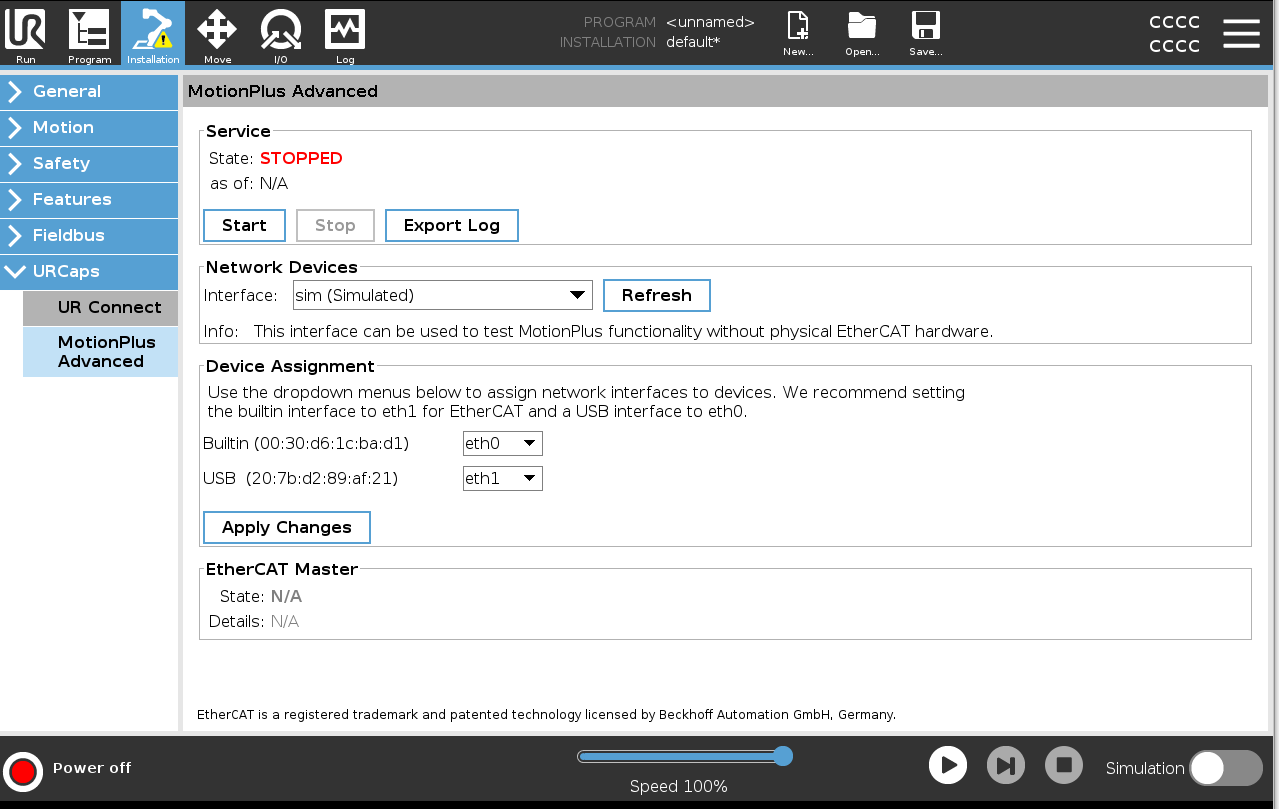
The Installation Tab User Interface provides the following functions:
Service
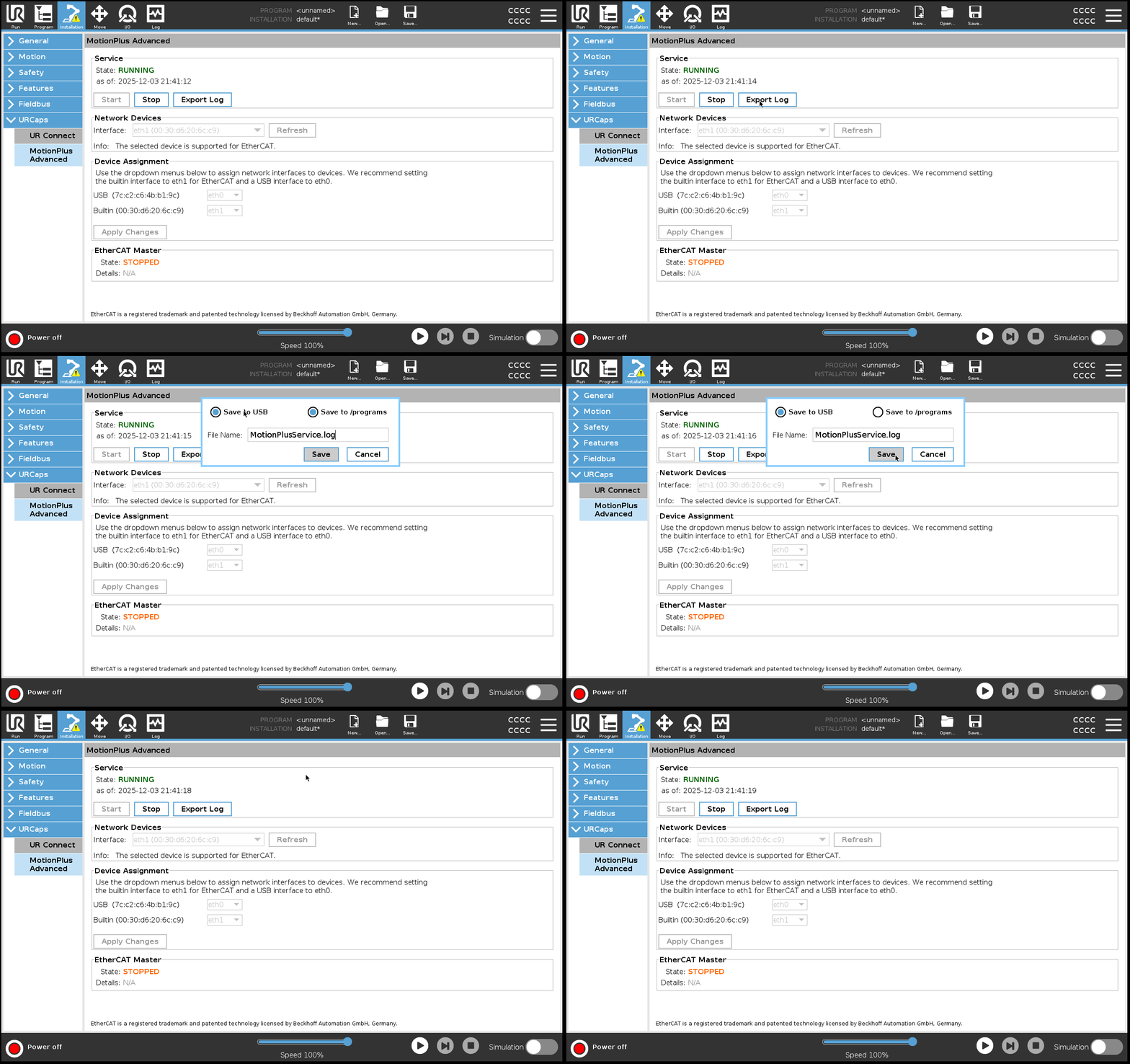
The Service section allows you to view the status of the MotionPlus Service, start or stop the service, and export the service log to a file.
Network Devices
The Network Devices section allows you to select the network device for EtherCAT communication. Note that the Simulated network device implements a virtual EtherCAT network in which EtherCAT communication is entirely simulated.
Device Assignment
If you have multiple interfaces for Ethernet connection, we suggest that you assign ‘eth1’ to the native Ethernet port, and one of your USB Ethernet adapters to ‘eth0’. This will enable you to communicate with your robot over SSH or use the USB Ethernet port for communication with other devices. EtherCAT requires a very stable connection, so the native built-in Ethernet port is preferred.
EtherCAT Master
The EtherCAT Master section displays the EtherCAT Master status and any errors. Information on errors and error codes can be found here: MotionPlus URCap Errors.
Step-by-Step Install of the MotionPlus URCap
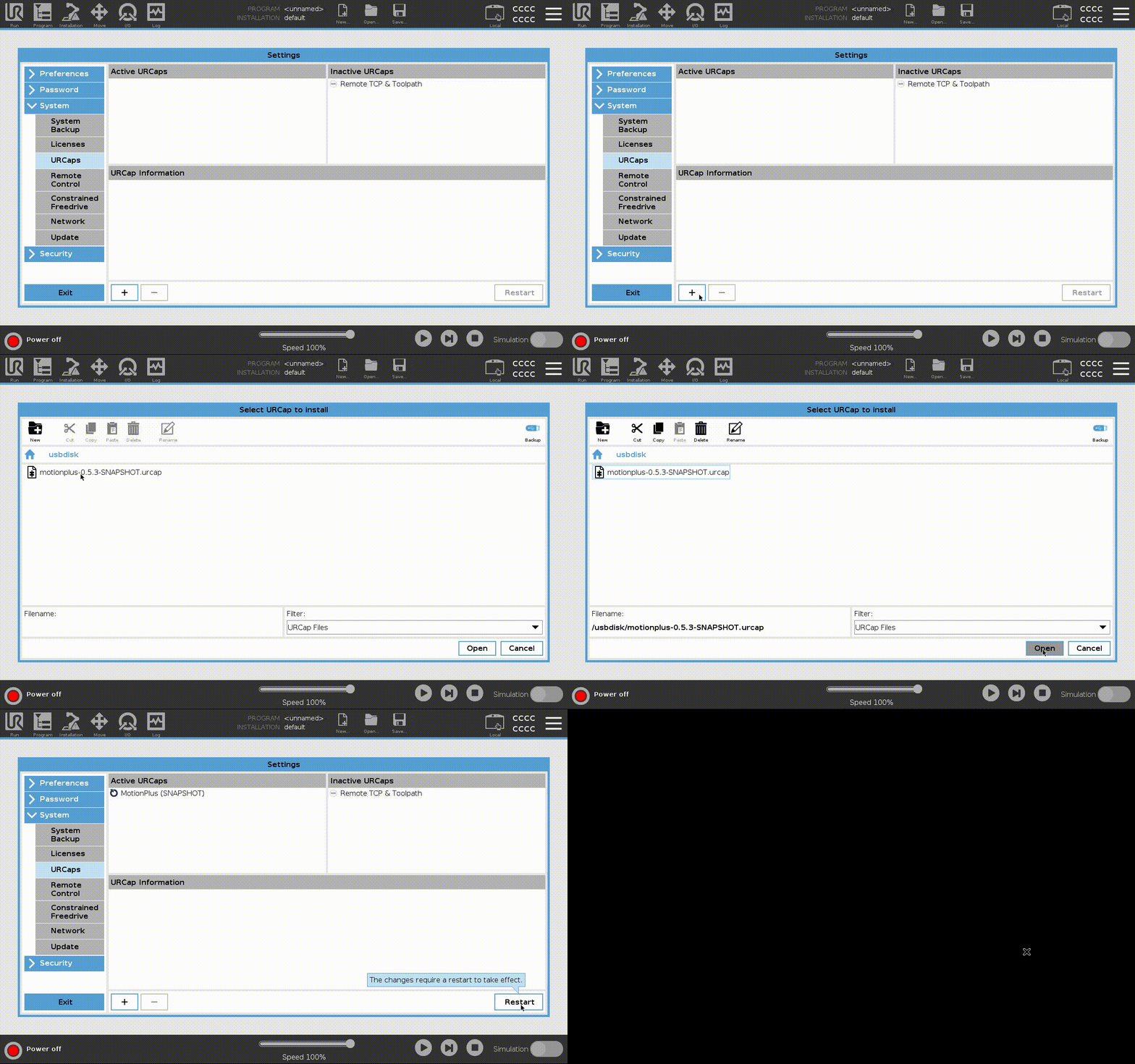
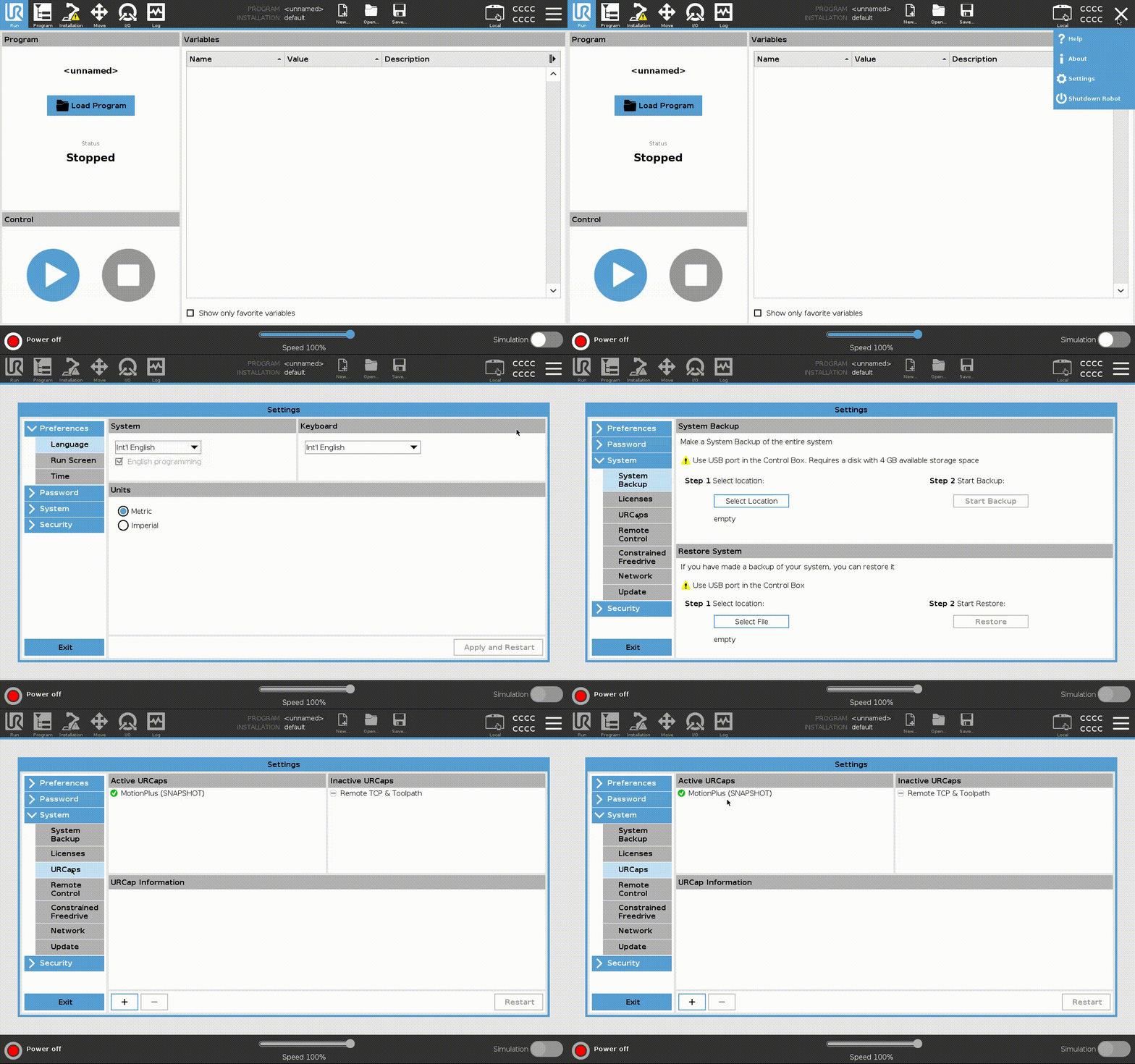
Follow the standard process of installing a URCap:
Download and copy the URCap package to a USB drive, and connect the USB drive to the teach pendant.
Navigate to the URCap Management page.
Click the Add / Install button, select the target URCap from the USB drive, then click the Open button.
Click the Restart button to restart Polyscope.
Start MotionPlus Service
Plug in the USB-Ethernet adapter
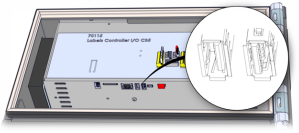
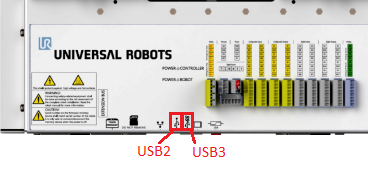
Connect the USB-Ethernet adapter to one of the USB ports on the UR Controller. The SS USB port (USB3 port) is recommended.
Navigate to the MotionPlus installation tab.
Refresh the network interfaces by pressing the Refresh button under Network Devices.
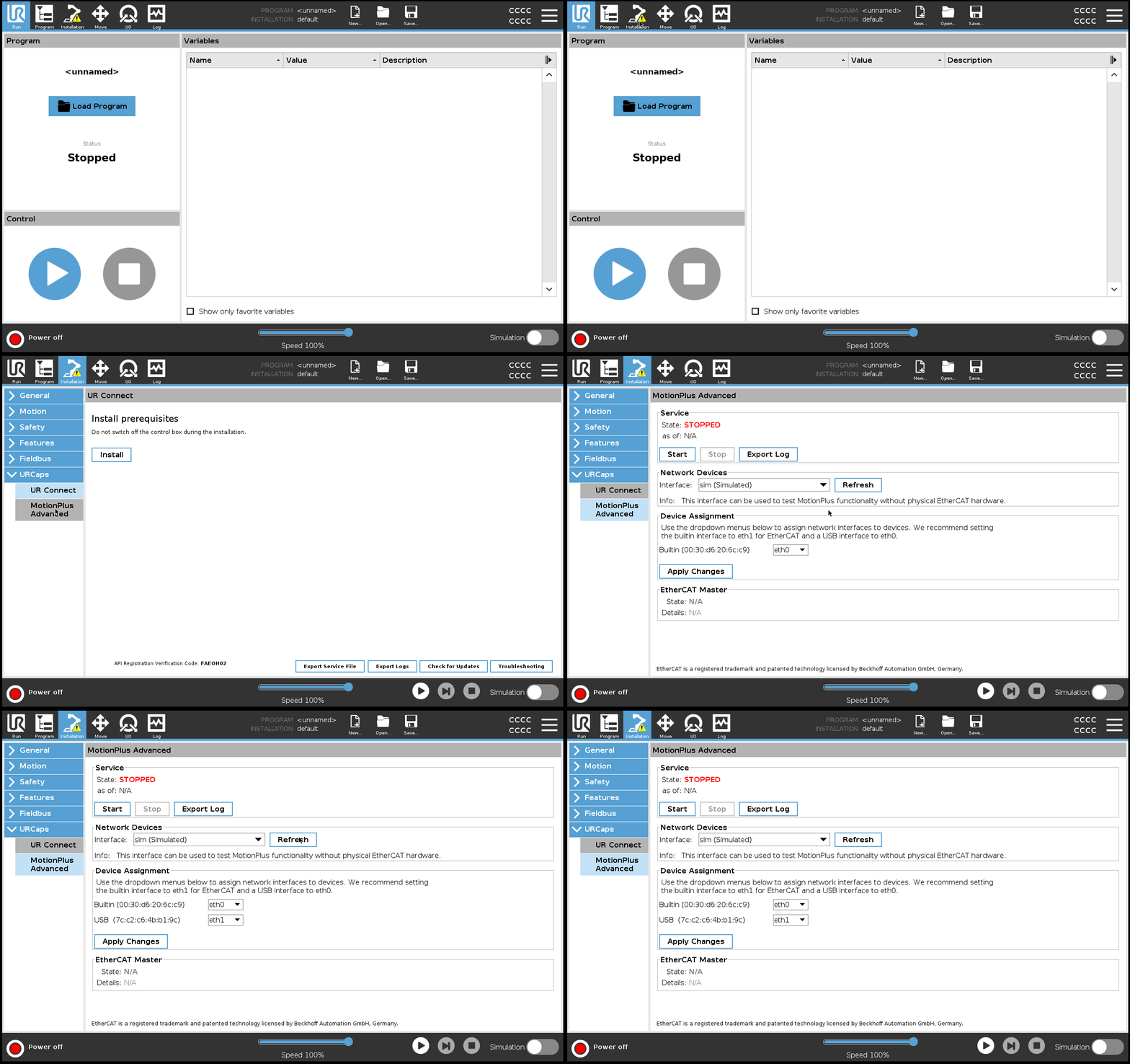
Assign network interfaces to devices
Set the builtin device to be assigned to the eth1 interface using the dropdown menu, and set the USB-Ethernet adapter to eth0.
Press the Apply Changes button. A dialog should pop up telling you to reboot the robot.
Reboot the robot.
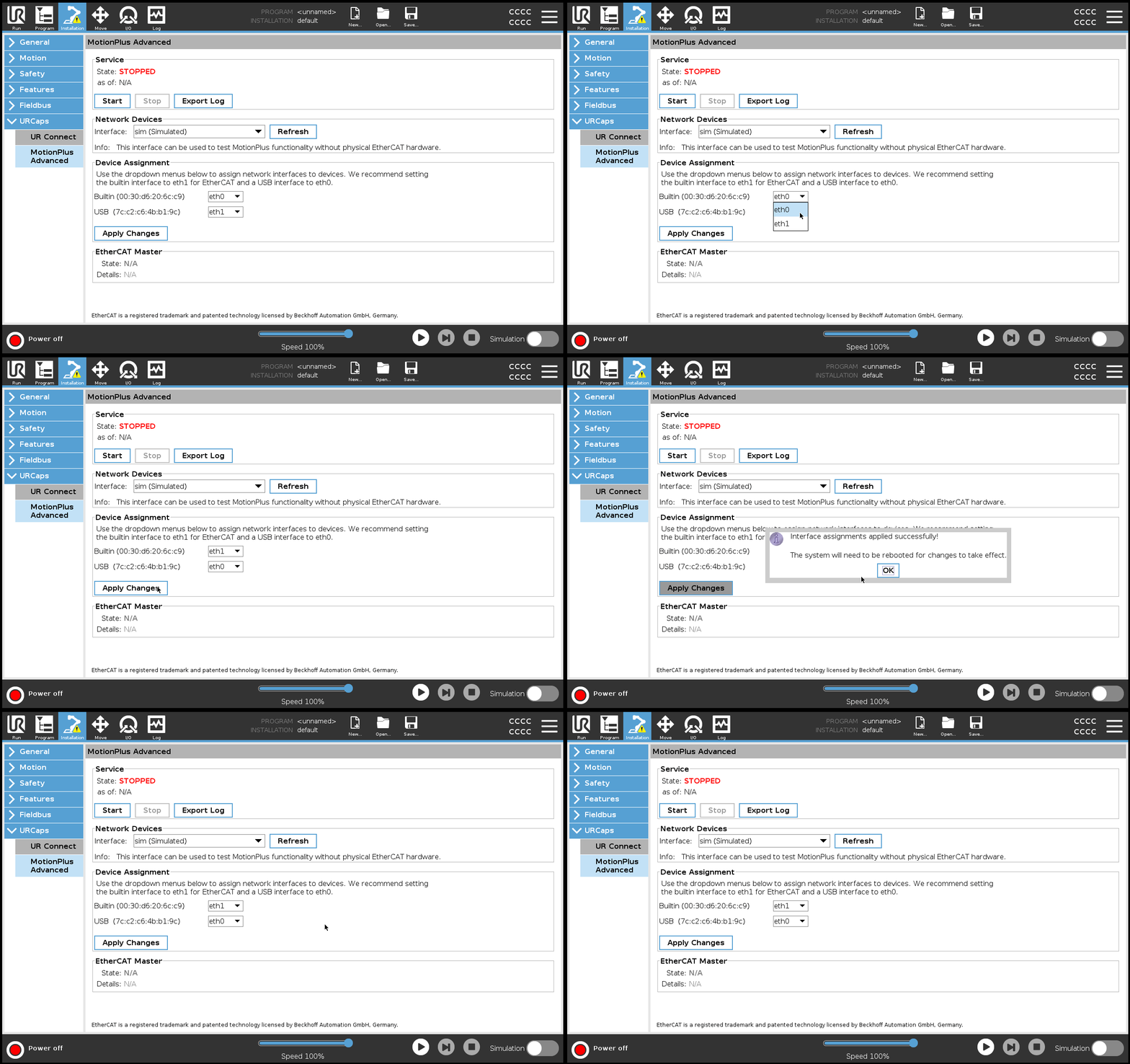
Note
You may see only the Builtin device if no USB-Ethernet adapter has been plugged in or the adapter isn’t compatible. Restart Polyscope if the adapter doesn’t show up after pressing the Refresh button.
Select network interface for EtherCAT communication
Navigate back to the MotionPlus Installation User Interface. The Device Assignment section should show that the USB-Ethernet adapter is assigned to eth0 and the Builtin device is assigned to eth1.
In the Network Devices section, select the network interface corresponding to the connected Ethernet adapter using the dropdown – it should be eth1.
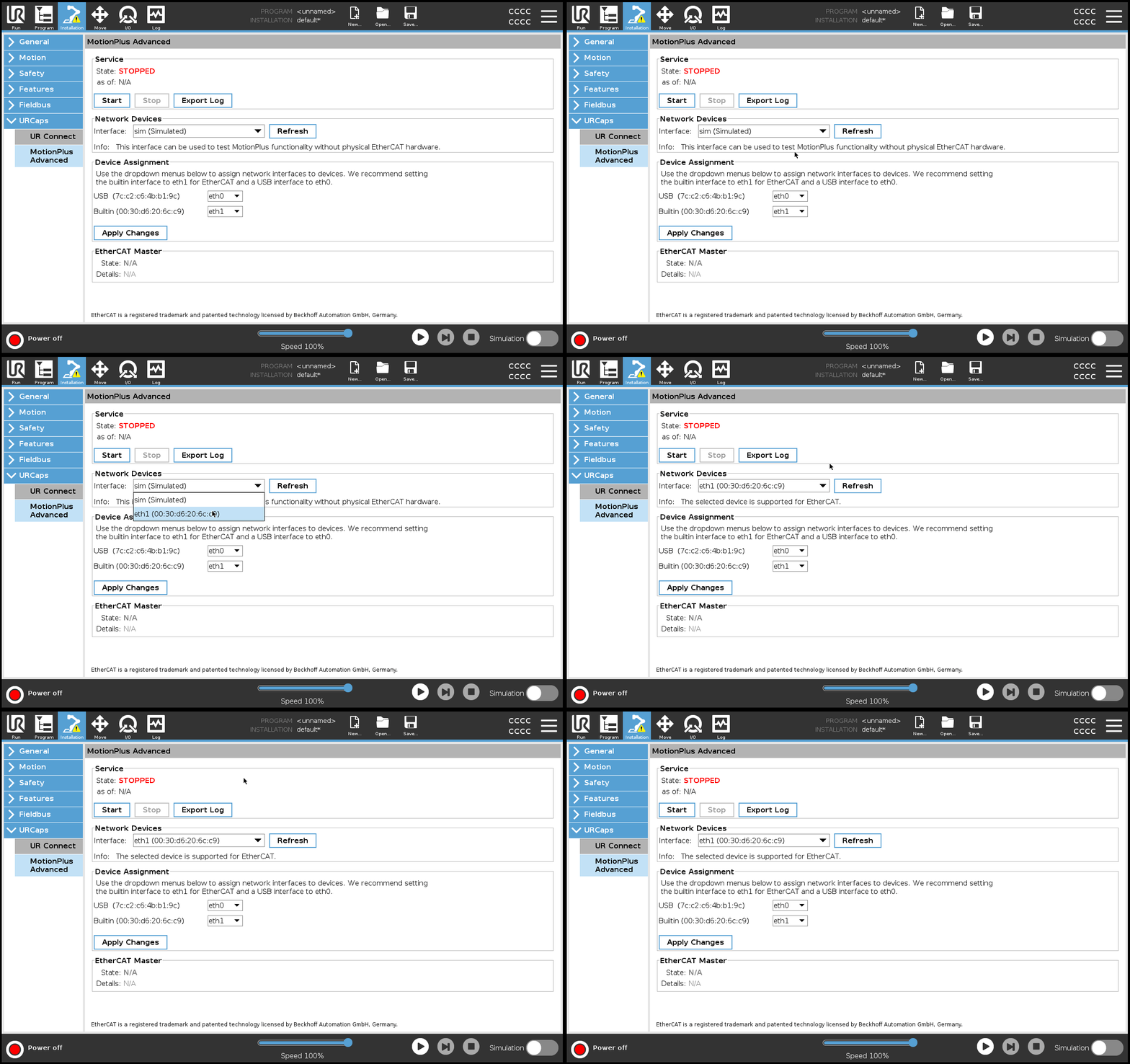
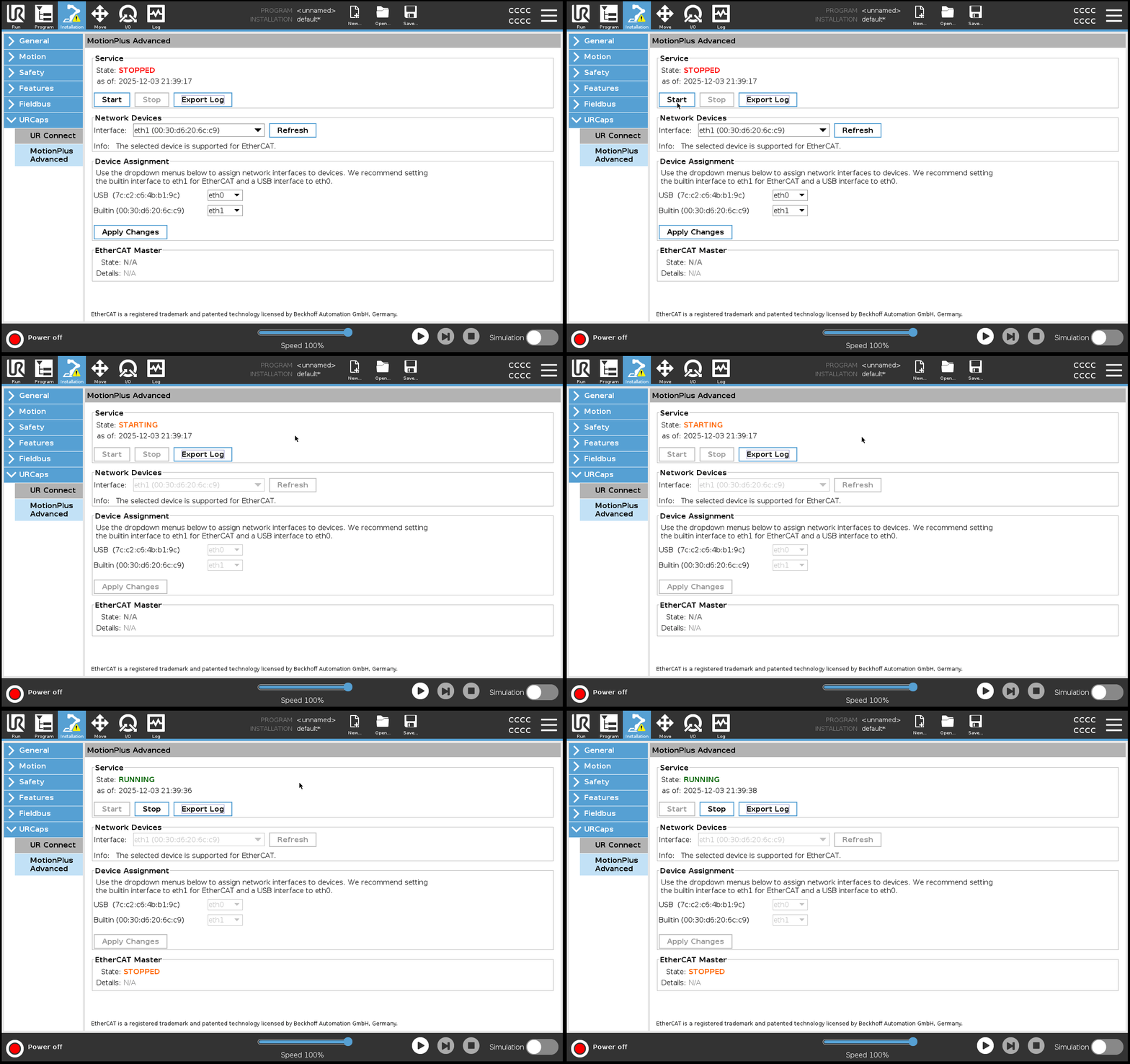
Start the MotionPlus service
Click the Start button to start the MotionPlus Service.
When the service has started, the Service State will display as RUNNING.
Note
If the status does not change to RUNNING within 10 seconds, the service may have crashed, and the reason may be recorded in the MotionPlus Service log file.
Export MotionPlus Service Log
The log of the MotionPlus Service can be transferred to a USB drive and viewed as a text file on any computer:
Navigate to the MotionPlus installation tab.
Click the Export Log button and specify the file name.
Select Save to USB. You can then view the log file on another computer.
Remove MotionPlus URCap
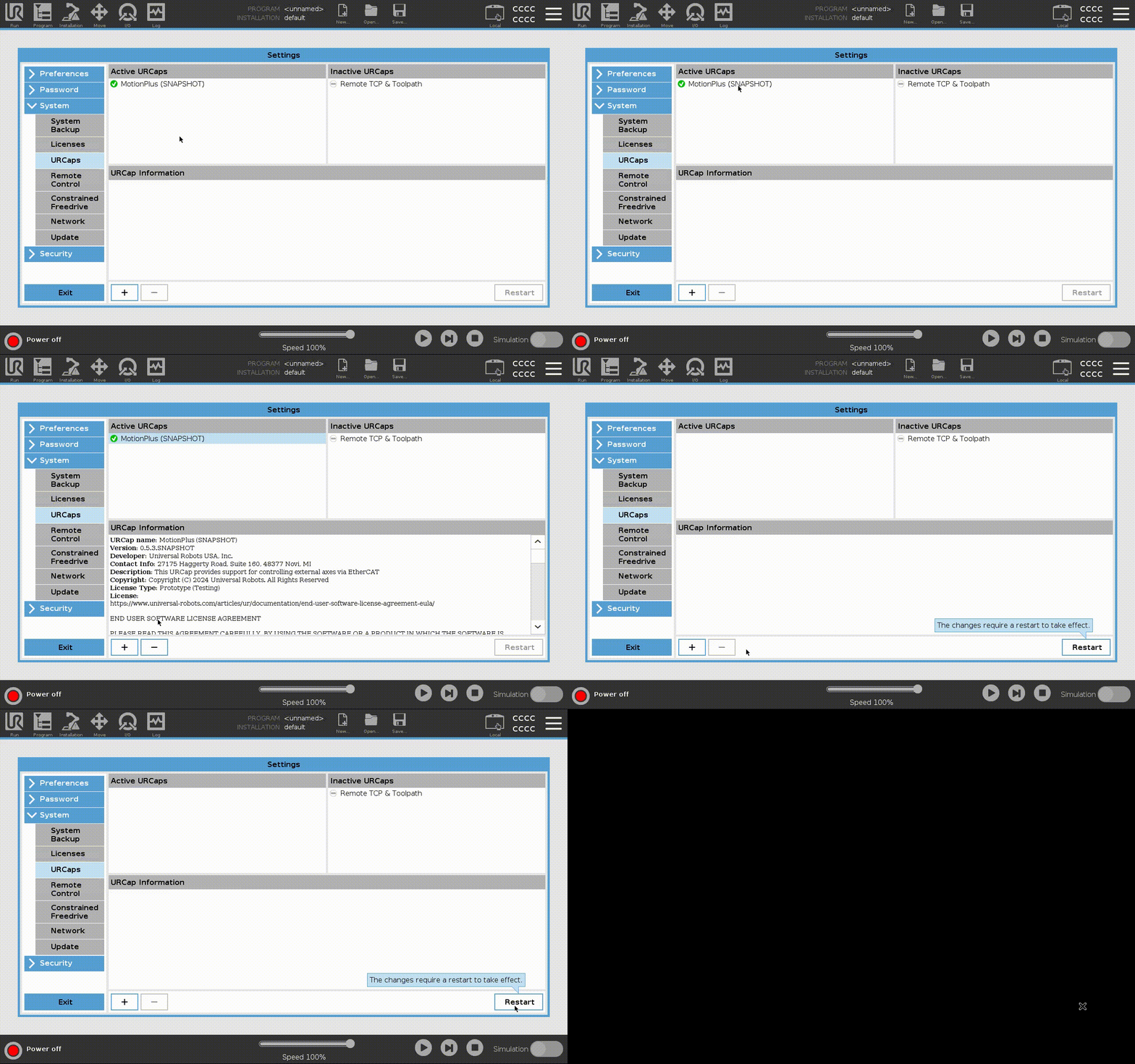
If you are upgrading/downgrading, we recommend that you remove the existing version of MotionPlus URCap first:
Navigate to the URCap Management page.
Select the target URCap, then click the Remove button.
Click the Restart button to restart Polyscope.
Setup and Test the Servos
Please see the Servo Setup and Test page.