Detection
Warning
The AI Accelerator requires ROS 2 Humble, so PolyScope X 10.12.1 is the latest compatible release. PolyScope X 10.13 and later use ROS 2 Jazzy and are not currently supported.
This demo trains a 2D object detector, finds part bounding boxes in the camera view, and drives a simple pick-style motion from PolyScope X. For full 6DOF picking, use Pose Estimation instead.
What you need
SDK installed and running
Training data from Auto Annotation (preferred). Manual Annotation is deprecated.
Example program:
~/aia_sdk/polyscope/programs/aia_example_detect.urpx
Steps
Step 1 — Enter the SDK container
cd ~/aia_sdk/ros
./scripts/run_sdk_setup.sh
Step 2 — Create the dataset and train
Follow Auto Annotation (R → annotate → P → Train model).
Or, if a dataset already exists, launch detection and train from the Console UI:
./scripts/run_example_detection.sh
Then click Train model. Training can take several minutes depending on image count.
Step 3 — Load the model
Click Load model in the Console UI.
The UI loads the highest-numbered folder under
ros/data/models/rtdetr_active(for examplecheckpoint-2350).If you need an older checkpoint, rename higher-numbered folders (for example prefix with
ignore_).
Step 4 — Test detection
Keep
./scripts/run_example_detection.shrunning (or restart it).Load the model in the
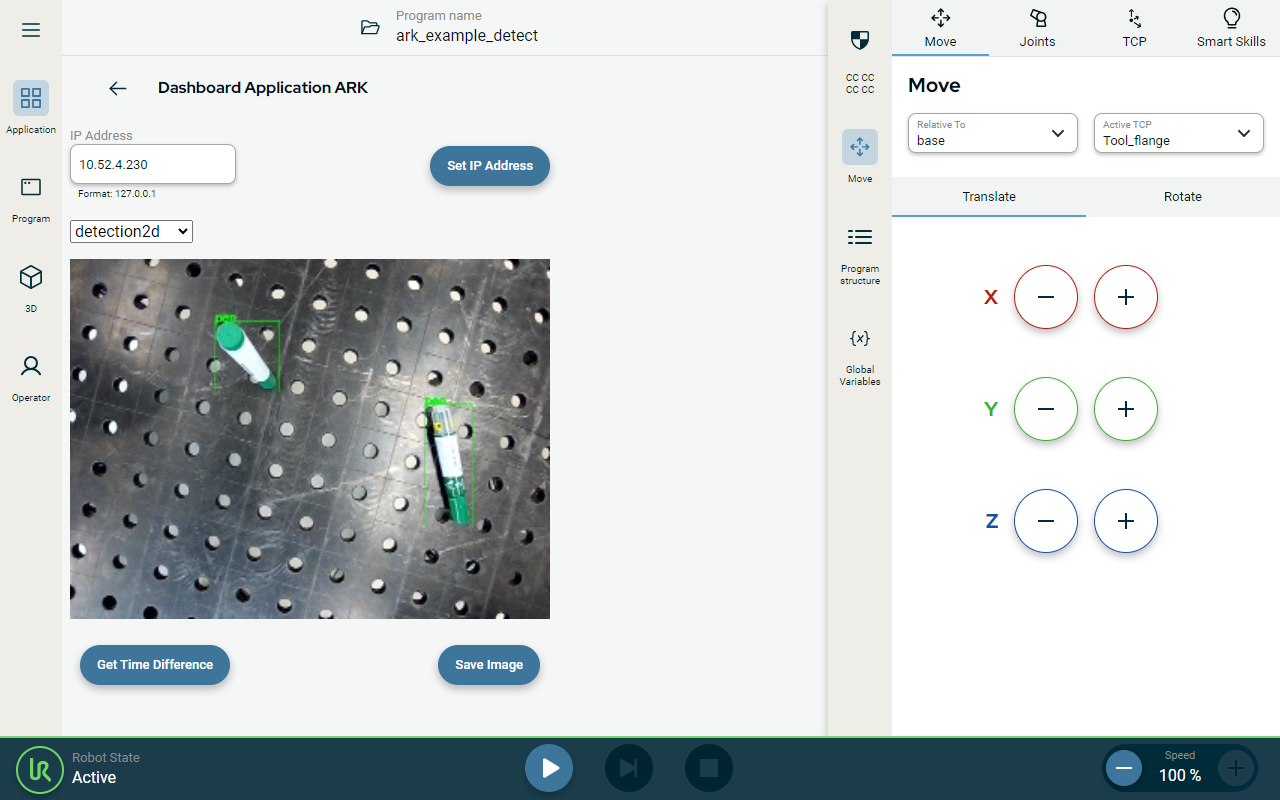
rtdetr_activecolumn of the Console UI.On the robot, open the AI Accelerator Dashboard and select the detection2d view.
Place a part in camera view and click Detect.
A green bounding box should appear on recognized parts.
Step 5 — Run the PolyScope program
Warning
This program stores a specific robot position. Before executing it, check that the robot can freely move to detect_wp and that the motion poses no risks.
Set program speed to 10%.
Select
detect_wp→ Move Here and confirm a clear path. Freedrive and re-save if needed.Adjust table height in the program script node labeled
local pose ...(default: table 2.5 cm below robot base).Adjust part height in
./launch/run_example_detection.launch.py(env_manager_node; default 4.5 cm).Add an active TCP before setting waypoints so poses use the correct reference.
Open
aia_example_detectfrom~/aia_sdk/polyscope/programs/.Place objects in view and run the program.
The robot moves to
detect_wp, captures an image, and usesark_infer_detection()for a planar pose. It then moves ~150 mm above a recognized object (random choice if several are found).