Auto Annotation for object detection
Warning
The AI Accelerator requires ROS 2 Humble, so PolyScope X 10.12.1 is the latest compatible release. PolyScope X 10.13 and later use ROS 2 Jazzy and are not currently supported.
The Auto Annotation tool records a short camera sequence of the part you want to detect, lets you annotate the first frame, propagates that annotation through the sequence, and writes a COCO dataset used to train an RT-DETR detector. Training, loading, and testing are done from the companion Console UI that launches with this tool.
All paths below are inside the SDK container, under /workspaces/isaac_ros-dev/ (host-side equivalent is typically ~/aia_sdk/ros/... depending on your mount).
End-to-end flow (summary)
Stage |
Where |
Action |
What gets written |
|---|---|---|---|
1. Record |
Auto Annotation UI |
Press R |
|
2. Load |
Auto Annotation UI |
Press L |
(reads last |
3. Annotate frame 0 |
Auto Annotation UI |
Left/right click |
Prompt points in memory only |
4. Propagate |
Auto Annotation UI |
Press P |
Masks/boxes in memory; also auto-writes COCO under |
5. Review |
Auto Annotation UI |
Press V |
Playback only |
6. (Optional) Regenerate COCO |
Auto Annotation UI |
Press G |
Rewrites the same COCO train/validation files |
7. Train |
Console UI |
Train model |
|
8. Load |
Console UI |
Load model |
Loads highest-numbered |
9. Test |
Console UI |
Detect |
Inference overlays / terminal logs |
flowchart TB
rec["<b>1. Record</b> — R"]
ann["<b>2-3. Annotate</b> — L + clicks"]
prop["<b>4. Propagate</b> — P"]
train["<b>6. Train model</b>"]
loadm["<b>7. Load model</b>"]
detect["<b>8. Detect</b>"]
rec -- "video_N/*.jpeg" --> ann --> prop
prop -- "coco_train.json + coco_validation.json" --> train
train -- "checkpoint-<step>" --> loadm --> detect
prop -. "5. Review with V" .-> ann
classDef annotstep fill:#FFFFFF,stroke:#002B39,stroke-width:1.5px,color:#002B39
classDef consolestep fill:#D7DDDF,stroke:#002B39,stroke-width:1.5px,color:#002B39
class rec,ann,prop annotstep
class train,loadm,detect consolestep
White boxes are steps in the Auto Annotation window, shaded boxes are buttons in the Console UI, and the edge labels are the files each stage leaves on disk.
Steps to launch
Enter the SDK container as described in the SDK article:
cd ~/aia_sdk/ros
./scripts/run_sdk_setup.sh
Inside the container run:
./scripts/run_tool_auto_annotation.sh
This launches the Auto Annotation tool and the Console UI.
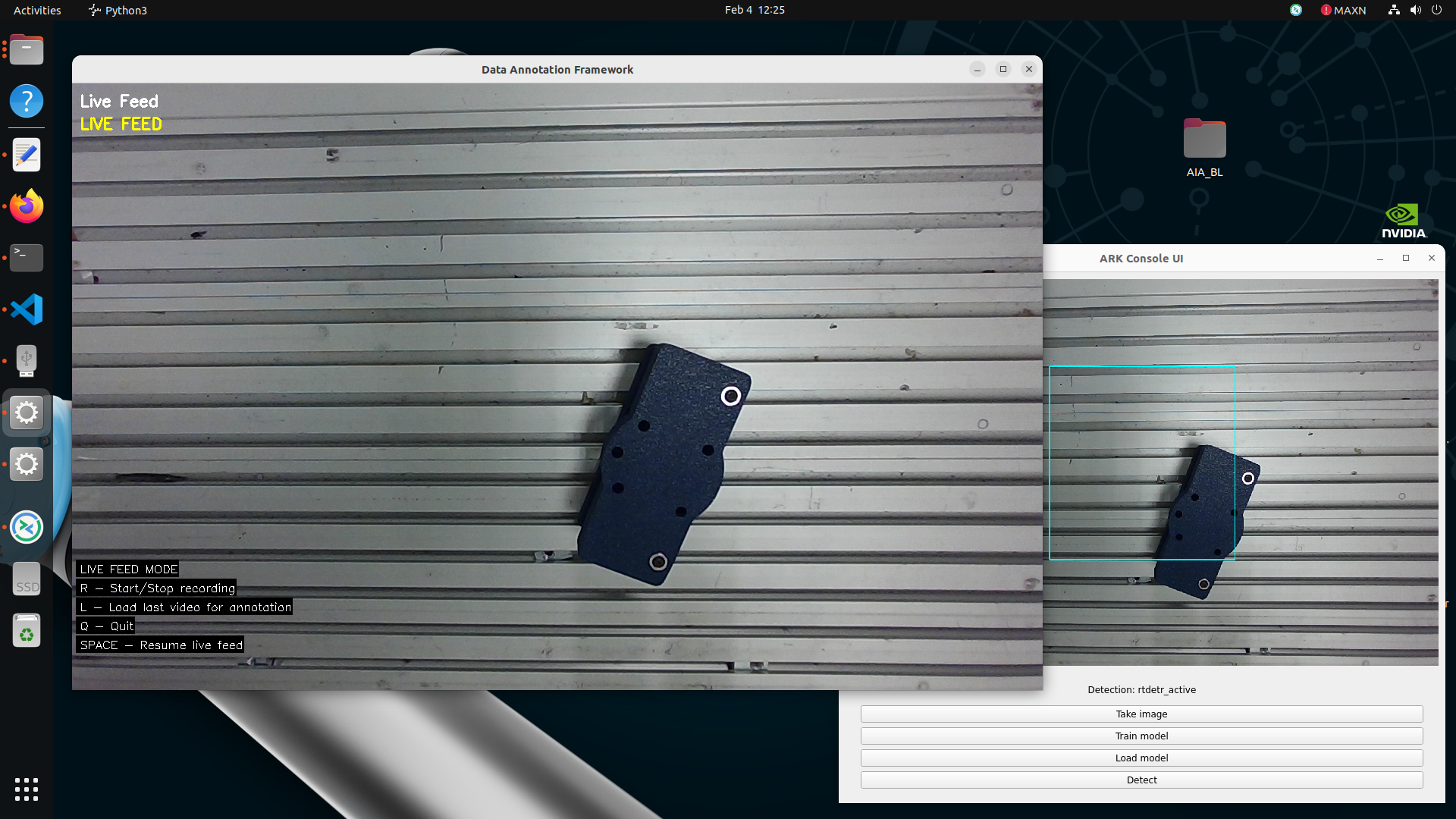
The Auto Annotation tool (left) and the Console UI (right) both start from run_tool_auto_annotation.sh. Annotation happens in the Auto Annotation window; training and loading happen in the Console UI.
Stage 1 — Record video frames (R)
Aim the camera at the part. Make sure the part is fully in view when you start.
Press R to start recording.
Capture multiple viewpoints of the stationary part by moving the robot (Freedrive or gentle programmed motion) so the camera orbits or approaches the part.
Press R again to stop.
Tip
Prefer moving the robot, not the part. Hands, gloves, or a person moving the object often end up in the frames and get learned as part of the object. Leave the part fixed on the table and move the robot/camera instead for a short, clean clip.
Keep the clip short (under ~10 seconds). Longer sequences make propagation much slower (can exceed 1 hour).
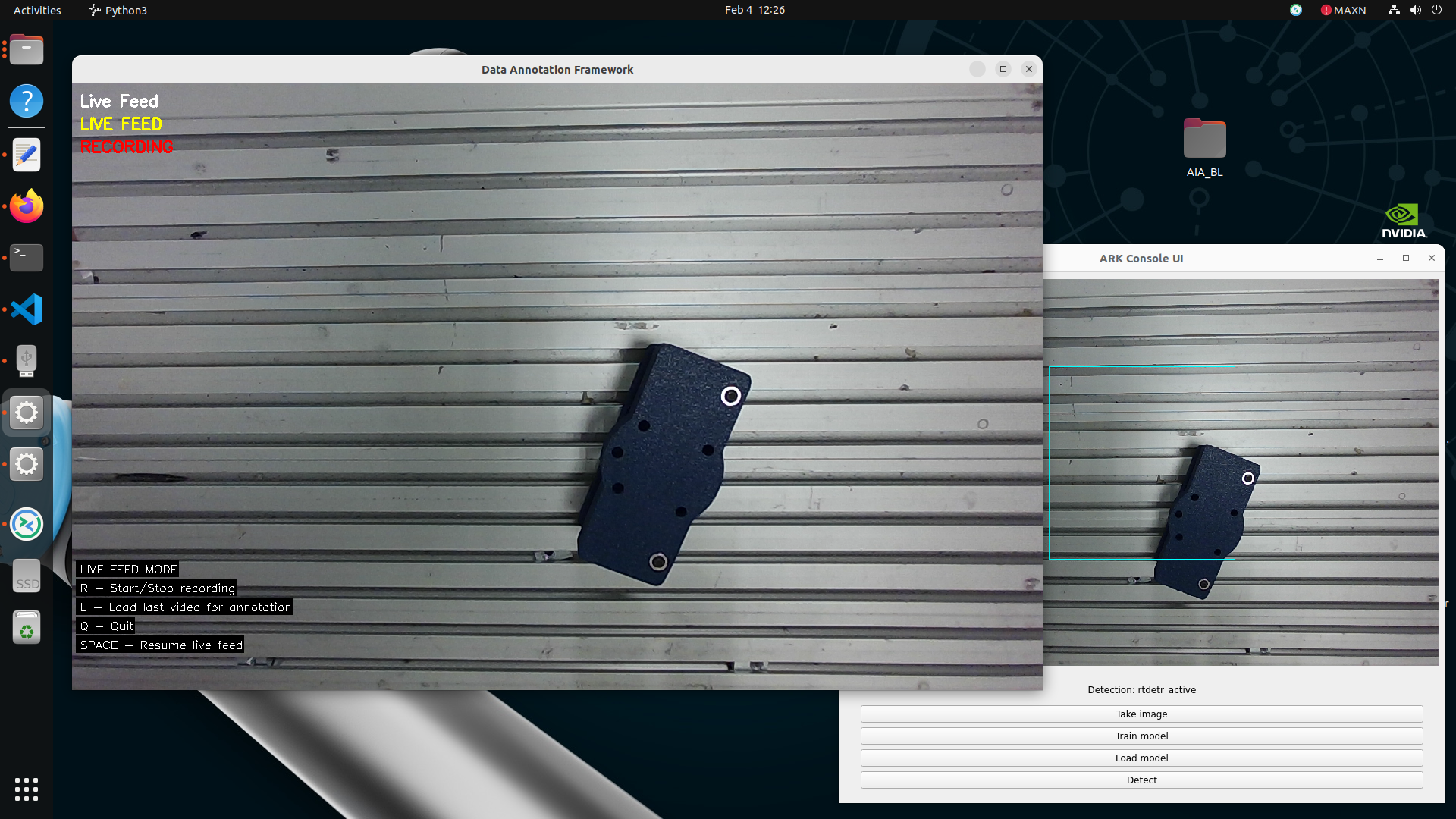
Recording in progress after pressing R. Each frame is written as a sequential JPEG into a new data/videos/video_<N>/ folder.
Files generated
data/videos/video_<N>/
  000000.jpeg
  000001.jpeg
  000002.jpeg
  ...
<N>is the next free integer (video_0,video_1, …).Frames are sequential JPEGs (not a single
.mp4).
Stage 2 — Load the recording (L)
Press L to load the last recorded video_N folder. The first frame appears for annotation.
Press SPACE any time to return to the live camera feed.
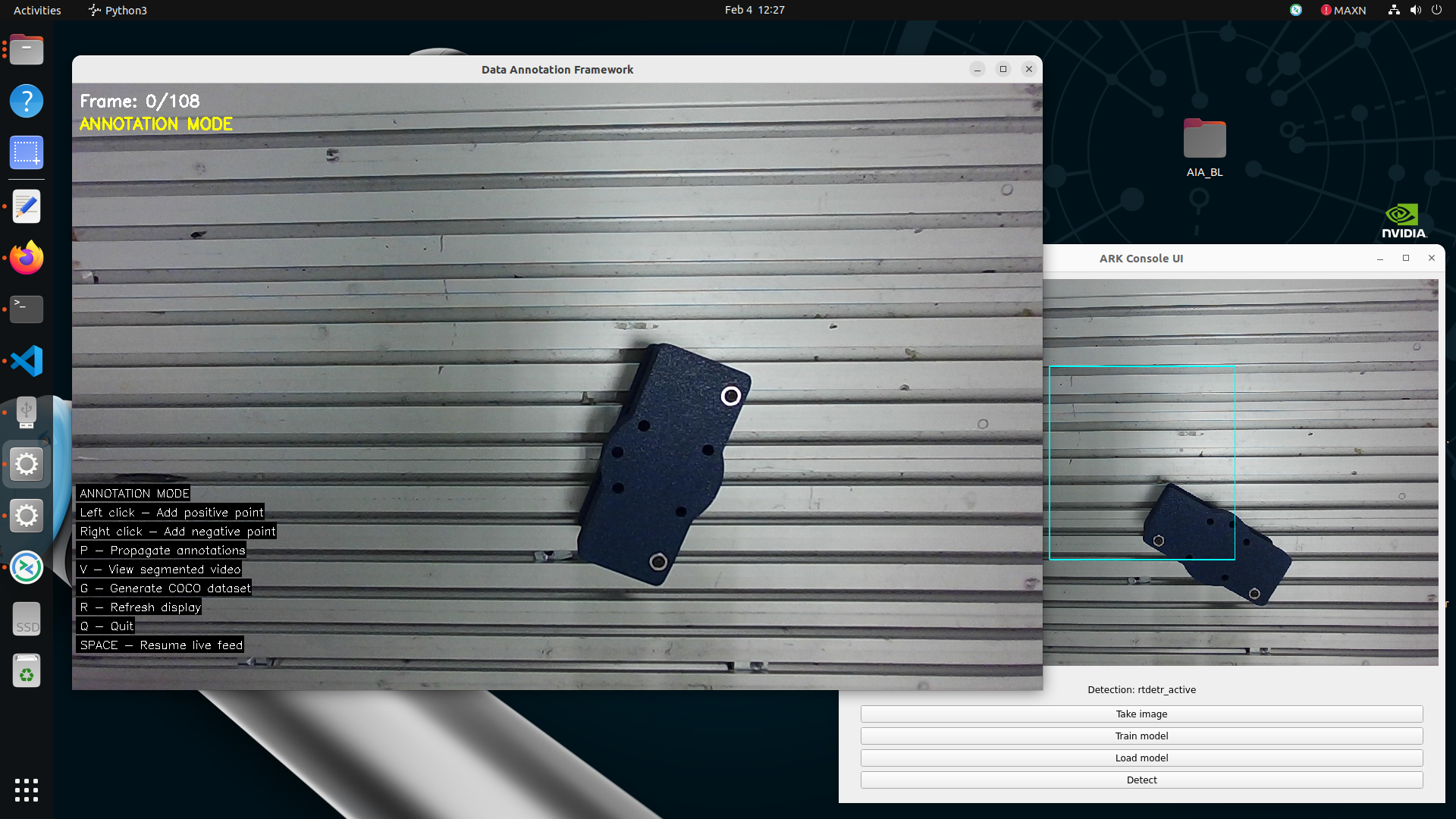
Annotation mode after pressing L: the first frame of the last recording is frozen and ready for prompt points. Press SPACE to go back to the live feed.
Files generated
None. This only reads data/videos/video_<N>/.
Stage 3 — Annotate the first frame
On the first frame:
Left click — positive prompt (this is the part). Place one or more green points on the object.
Right click — negative prompt (this is not the part). Mark all unwanted regions that the mask might otherwise include: table surface, wall, fixtures, shadows, neighbouring objects, robot links if visible, and any leftover hand/glove pixels.
Click an existing point again to remove it.
Refine until the highlight covers only the part. If the magenta/green overlay spills onto the table or background, add more negative points there before you propagate.
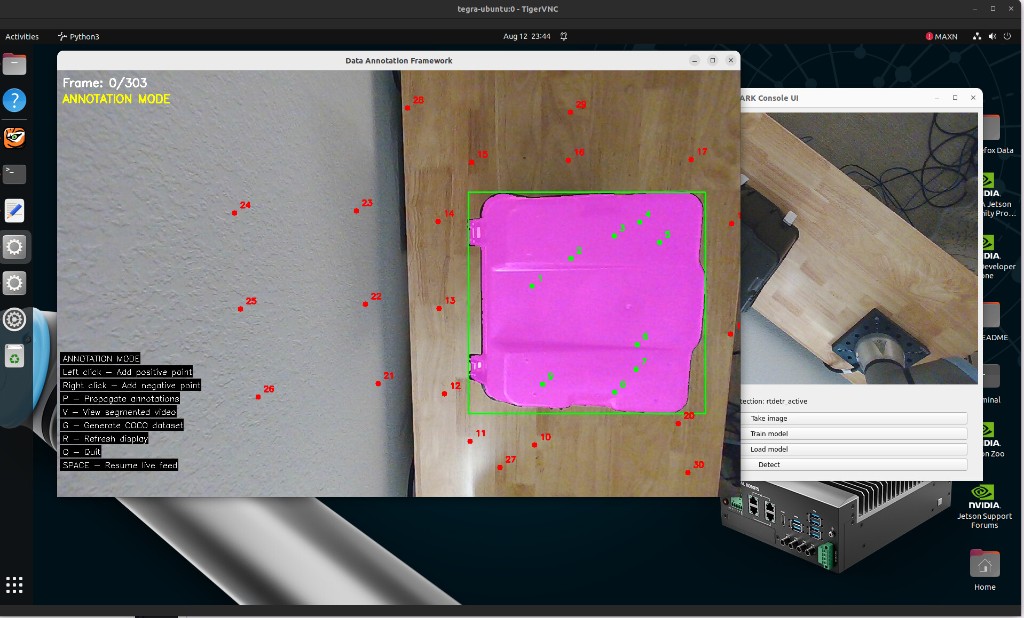
Example annotation: green positive points on the part, red negative points on unwanted regions (table, wall, and other background). Keep adding negatives until the mask stays on the object only.
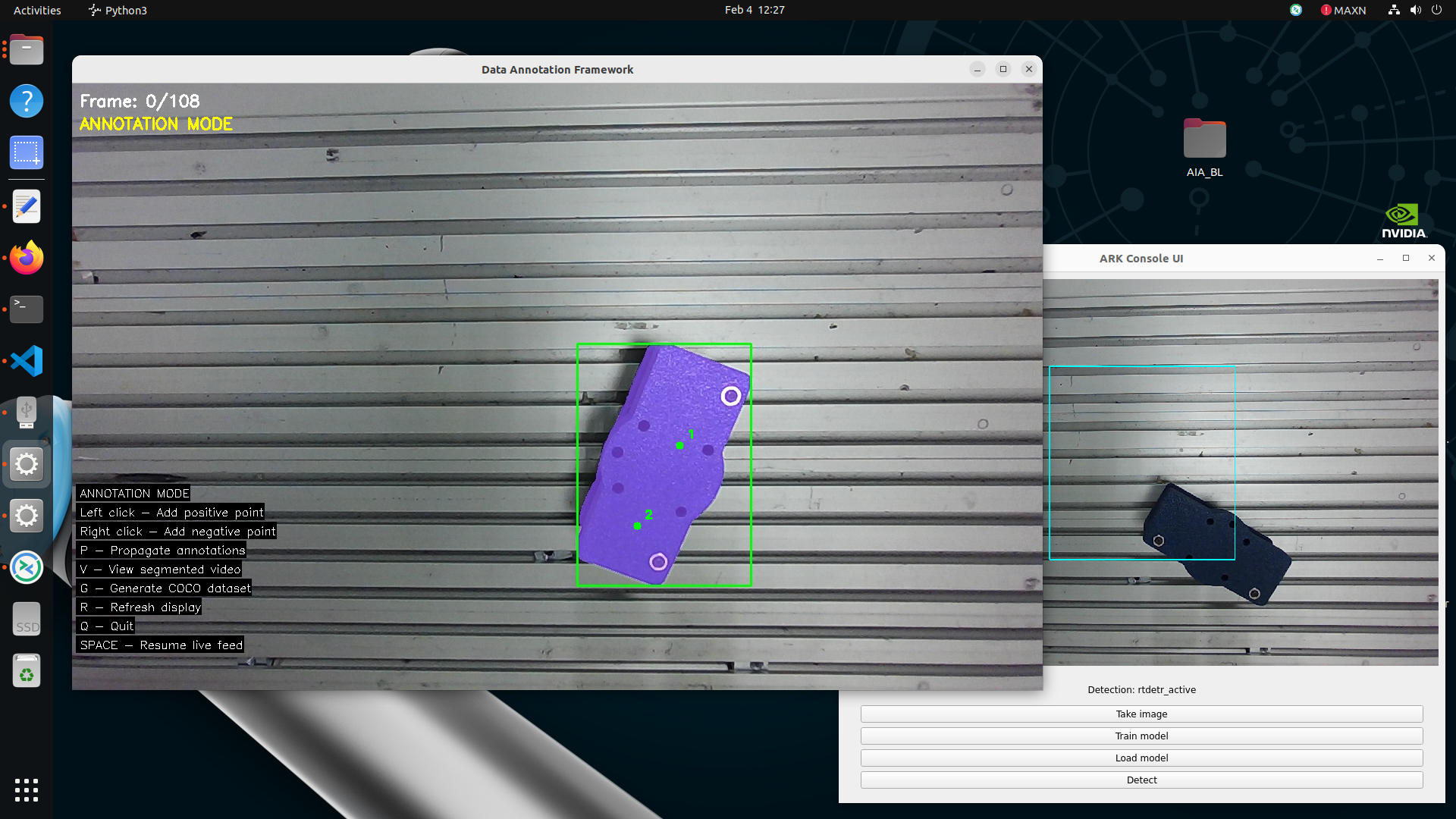
Left click adds a positive prompt point. The highlighted region is what SAM2 currently considers the part.
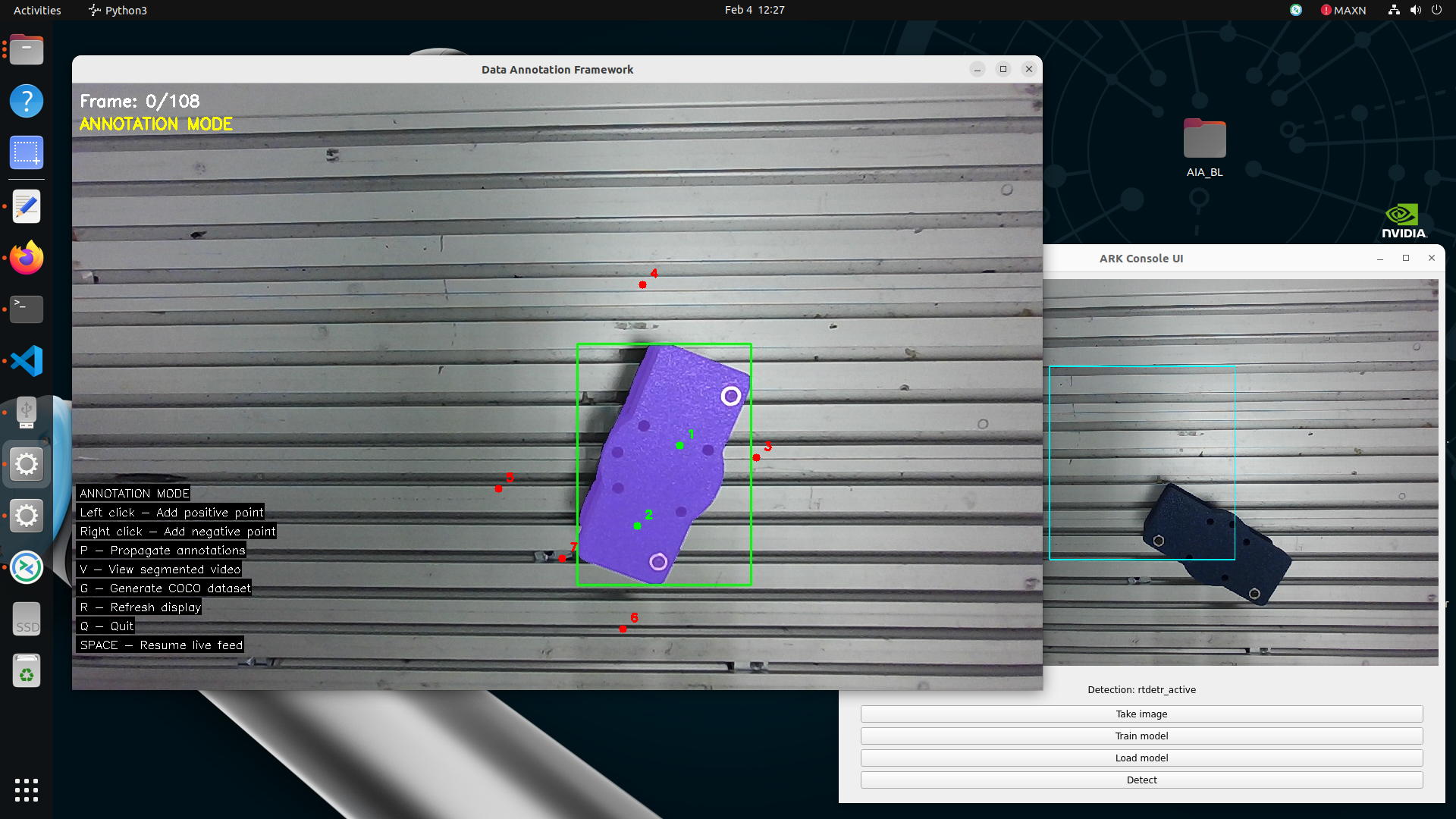
Right click adds a negative prompt point to shrink the highlight back off the background or neighbouring objects.
Files generated
None. Prompt points stay in memory until you propagate.
Stage 4 — Propagate annotations (P)
Press P to propagate the first-frame annotation through every frame (SAM2). This can take several minutes.
When propagation finishes successfully, the tool automatically generates the COCO dataset (same output as pressing G).
Files generated (automatic COCO write)
data/datasets/rtdetr_active/
  train/
    000000.jpeg          # ~80% of frames (copied from video_N)
    ...
    coco_train.json      # COCO annotations for train images
  validation/
    00000N.jpeg          # remaining ~20% of frames
    ...
    coco_validation.json # COCO annotations for validation images
Notes:
Images are copied from
data/videos/video_N/intotrain/andvalidation/(80/20 split by sorted filename order).Each JSON lists images, bounding boxes / segmentation from the propagated masks, and a single category (
object).This dataset is what Train model reads. Without these files, training fails.
Stage 5 — Review segmentation (V)
Press V to play the segmented video and confirm the highlight stays on the part for every frame.
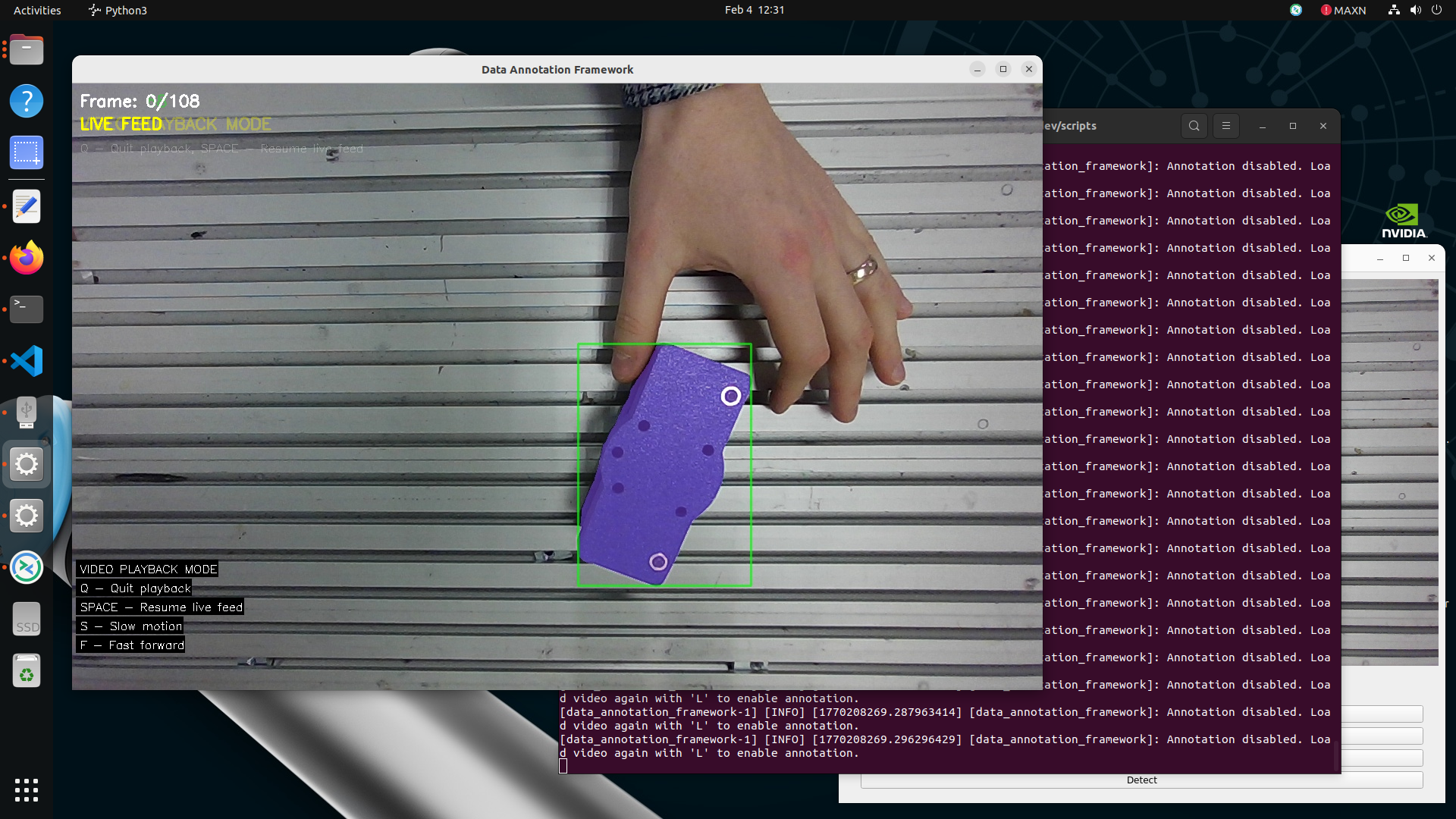
Segmented playback started with V. The propagated mask is drawn on every frame of the recording.
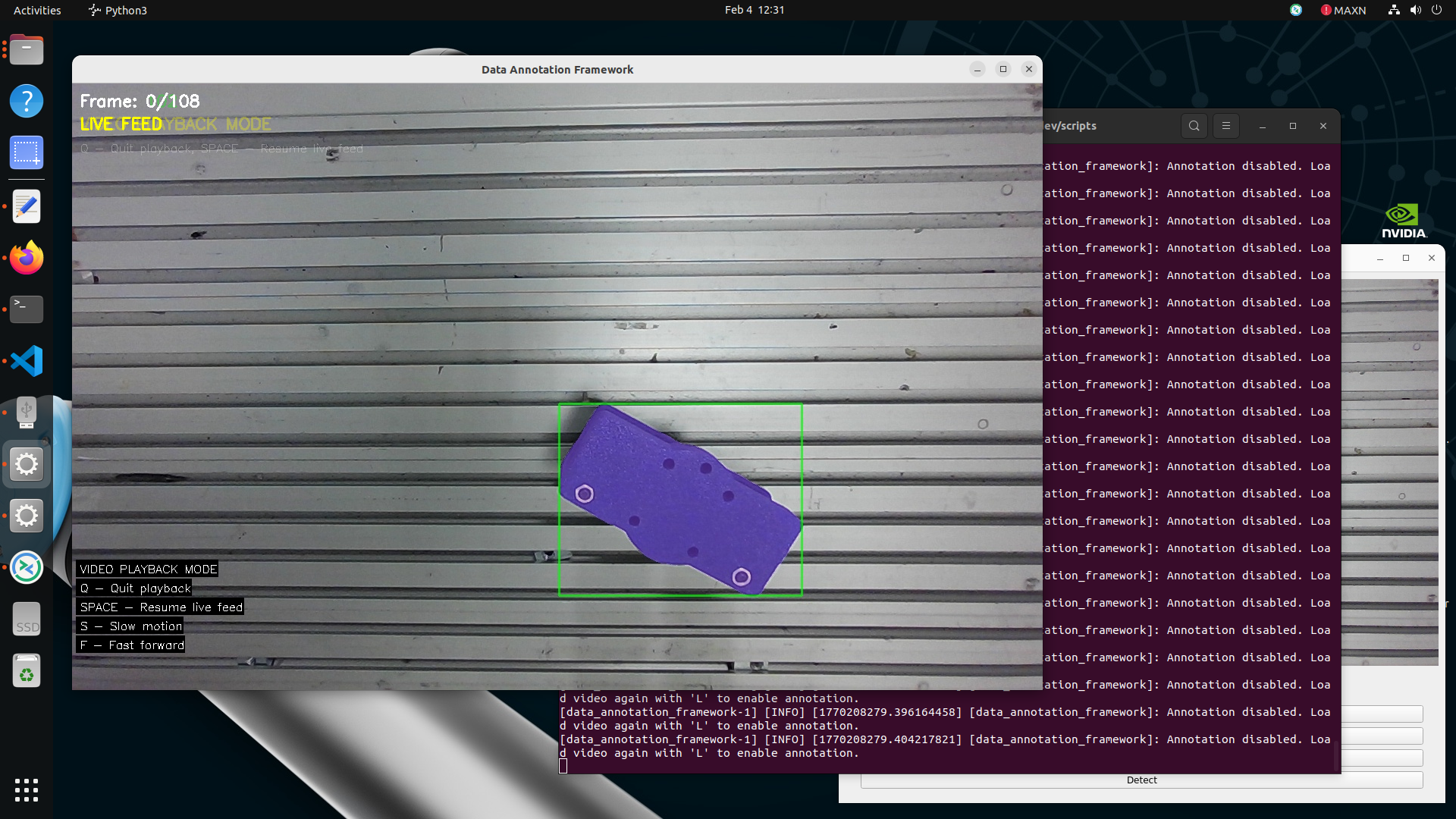
A later frame in the same playback. The mask should stay on the part for the whole clip; if it drifts or disappears, re-annotate and propagate again.
Files generated
None required for training. If review looks wrong, re-annotate and press P again (COCO will be regenerated).
Stage 6 — (Optional) Regenerate COCO (G)
Press G to rewrite the COCO dataset from the current propagation result. Use this if you need to regenerate coco_train.json / coco_validation.json without re-propagating, or if automatic generation after P did not succeed.
Files generated
Same layout as Stage 4:
data/datasets/rtdetr_active/train/coco_train.json
data/datasets/rtdetr_active/train/*.jpeg
data/datasets/rtdetr_active/validation/coco_validation.json
data/datasets/rtdetr_active/validation/*.jpeg
Stage 7 — Train model (Console UI → Train model)
With COCO present under data/datasets/rtdetr_active/, use the separate Console UI window (Detection: rtdetr_active):
Click Train model.
Watch the terminal: it verifies the COCO files, then runs HuggingFace training for many epochs (several minutes or longer).
Wait until training finishes (look for training-complete / end logs). Do not interrupt the container mid-train.
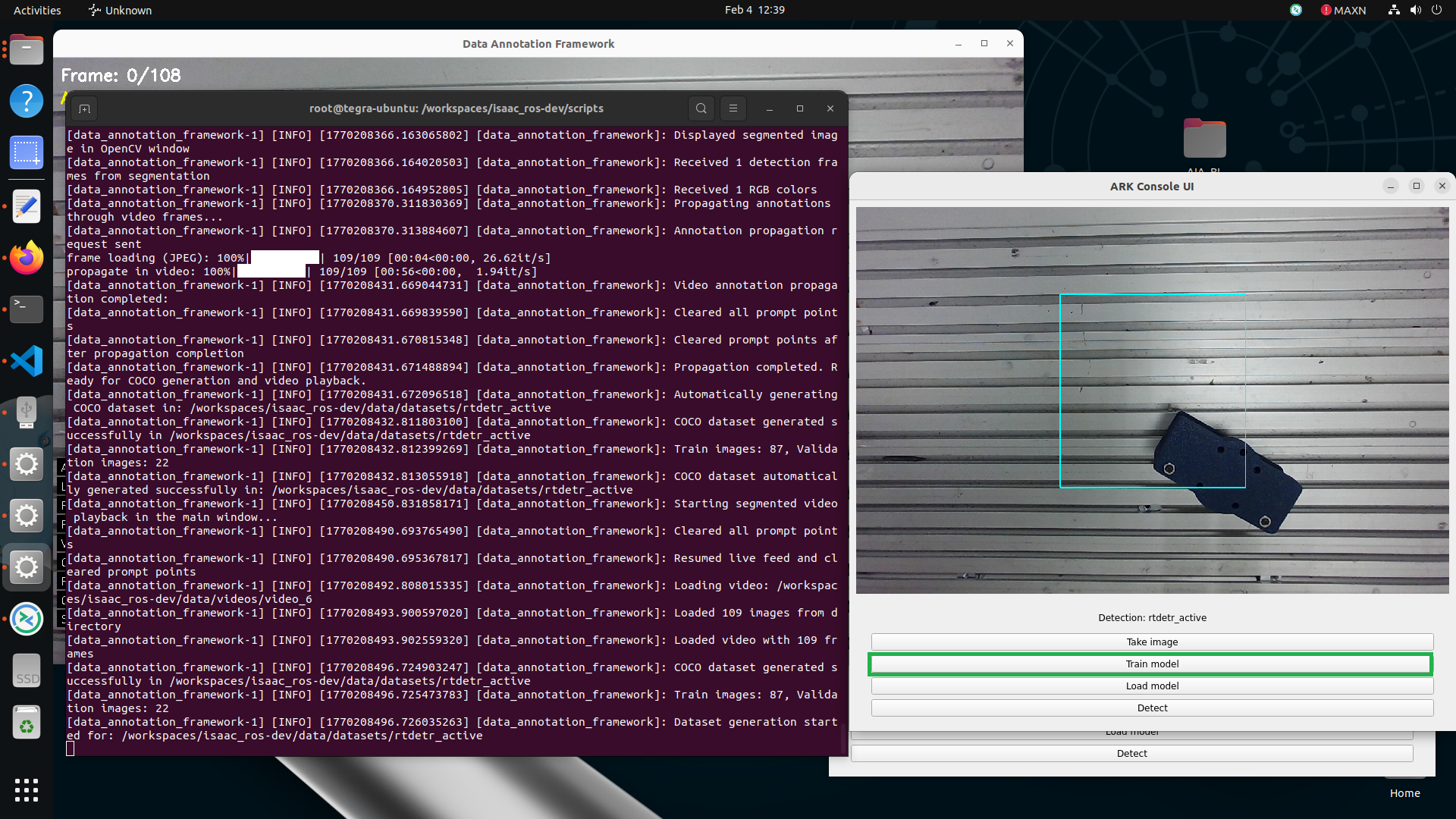
Train model in the Console UI (Detection: rtdetr_active). The terminal reports the verified COCO files and the train/validation image counts as training starts.
Training reads:
data/datasets/rtdetr_active/train/coco_train.json
data/datasets/rtdetr_active/validation/coco_validation.json
and fine-tunes from the base RT-DETR weights under Isaac assets (isaac_ros_assets/models/rtdetr/...).
Files generated (checkpoint-*)
data/models/rtdetr_active/
  checkpoint-<step>/     # e.g. checkpoint-750
    config.json
    model.safetensors    # or pytorch_model.bin
    preprocessor_config.json
    training_args.bin
    trainer_state.json
    optimizer.pt
    scheduler.pt
    ...                  # other HuggingFace Trainer artifacts
  checkpoint-<older>/    # earlier save; only a few are kept
The folder name is
checkpoint-plus the training step number (not a version you choose).Trainer saves periodically (per epoch) and keeps a limited number of folders (
save_total_limit).Use the highest-numbered folder that completed successfully (Console UI Load model picks this automatically).
There is no separate manual “create checkpoint” step — Train model is what creates checkpoint-*.
Stage 8 — Load model (Console UI → Load model)
Click Load model. The UI finds the highest-numbered checkpoint-* under data/models/rtdetr_active/ and loads it into the detector.
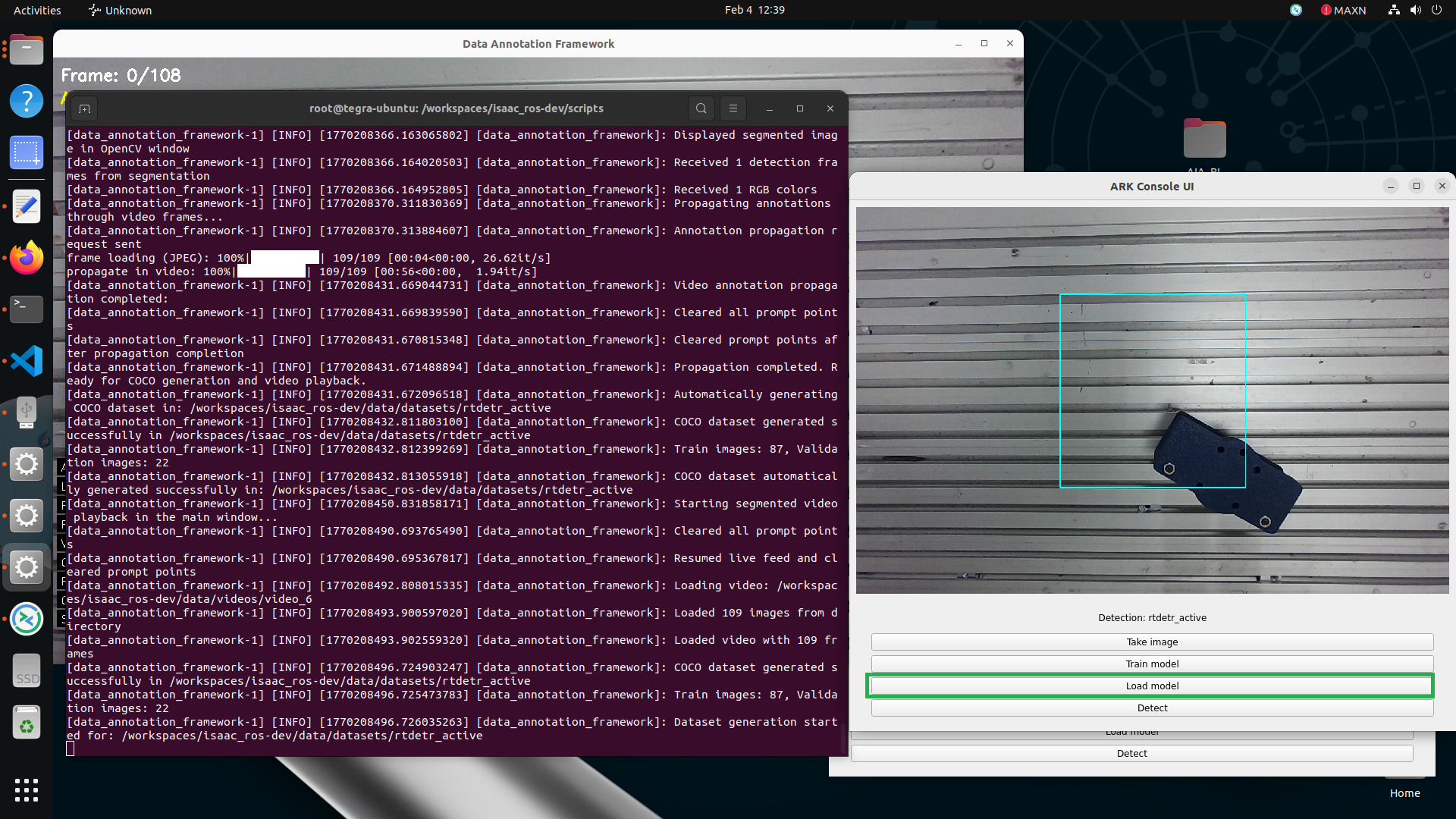
Load model loads the highest-numbered checkpoint-* from data/models/rtdetr_active/. Wait for the terminal to confirm the load before running inference.
Files generated
None. The existing checkpoint folder is loaded into memory.
For robot programs, point URScript at the same folder relative to data/models/:
ark_load_detection_model(model="rtdetr_active/checkpoint-750")
Replace checkpoint-750 with the folder name actually present on your system.
Stage 9 — Test detection (Console UI → Detect)
Place the part in camera view.
Click Detect.
Confirm a box (and mask, depending on pipeline) around the part in the image view; check terminal logs for class/confidence.
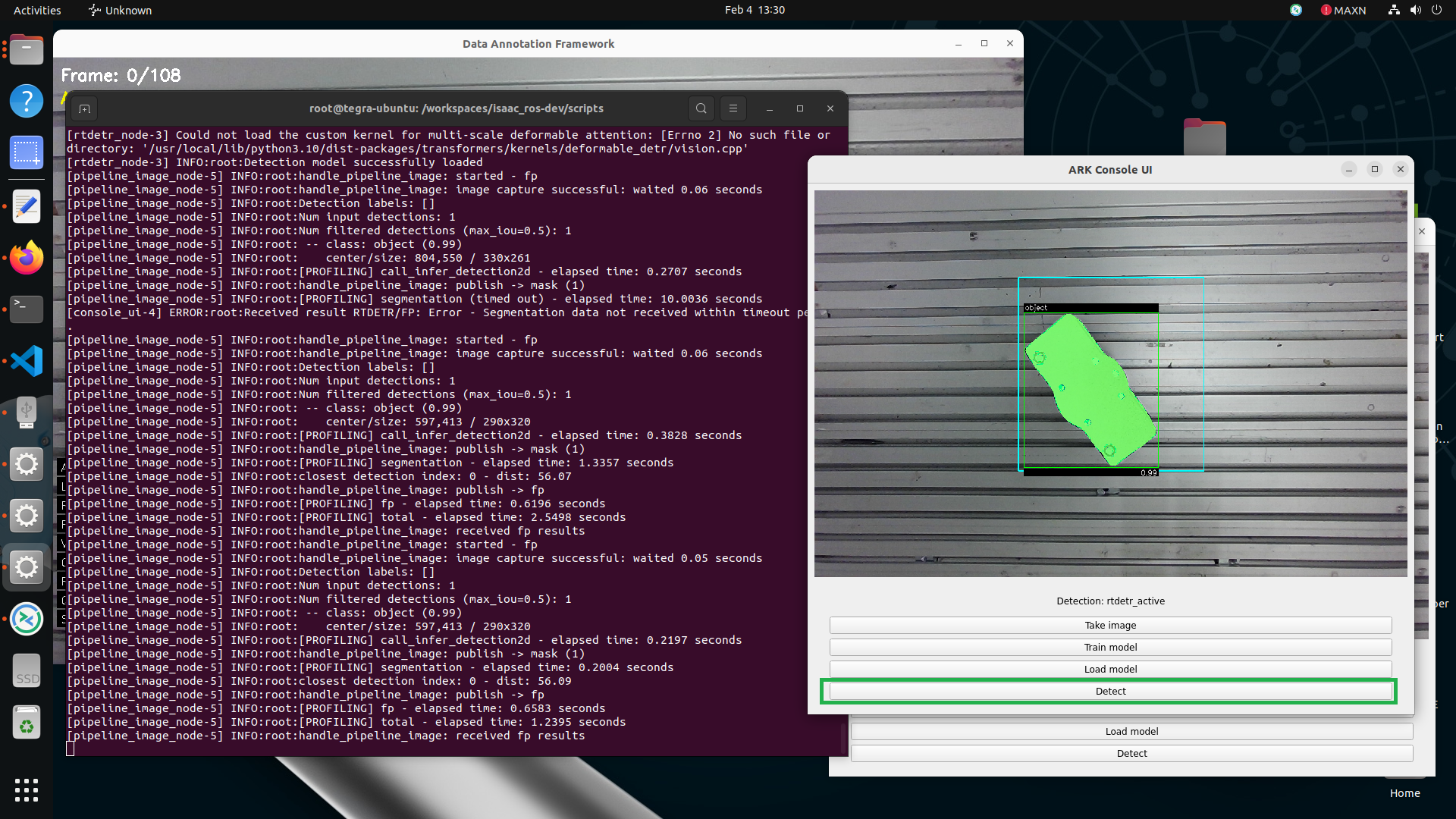
Detect runs inference on the current frame. A correct result draws a tight box and mask on the part, with the class and confidence logged in the terminal.
Files generated
None required. This is an inference check only.
When detection looks good, continue with:
Detection for planar pick-and-place, or
Pose Estimation (needs this detector plus a textured mesh for FoundationPose).
Path cheat sheet
Paths exist in two places that point at the same files:
Where you are |
Root for data files |
|---|---|
Host (terminal on the compute module desktop) |
|
SDK Docker container |
|
Where generated files live
Stage |
What is created |
Host path |
Container path |
|---|---|---|---|
Record (R) |
Frame JPEGs |
|
|
Propagate scratch |
Temporary SAM2 frame |
|
|
Propagate / G |
COCO train images + JSON |
|
|
Propagate / G |
COCO validation images + JSON |
|
|
Train model |
Checkpoints |
|
|
Train model |
TensorBoard / run logs |
|
|
Base RT-DETR (do not delete) |
Pretrained assets |
|
|
Key files under the COCO folders:
data/datasets/rtdetr_active/train/coco_train.json
data/datasets/rtdetr_active/train/*.jpeg
data/datasets/rtdetr_active/validation/coco_validation.json
data/datasets/rtdetr_active/validation/*.jpeg
Example layout from a real compute module
After one successful annotate → propagate → train cycle, a box typically looks similar to this (counts and checkpoint numbers will differ):
~/aia_sdk/ros/data/
├── videos/
│   └── video_0/                 # e.g. ~118 frame JPEGs from recording
│       ├── 000000.jpeg
│       ├── 000001.jpeg
│       └── ...
├── tmp_video_dir/               # short-lived SAM2 scratch (safe to delete)
├── datasets/
│   └── rtdetr_active/
│       ├── train/               # e.g. ~94 images + coco_train.json
│       └── validation/          # e.g. ~24 images + coco_validation.json
└── models/
    └── rtdetr_active/
        ├── checkpoint-564/      # older save (~490 MB each)
        ├── checkpoint-2350/     # highest number = what Load model uses
        └── runs/                # training logs only
Quick checks from a host terminal on the compute module:
# List recordings
ls ~/aia_sdk/ros/data/videos/

# Confirm COCO files exist
ls ~/aia_sdk/ros/data/datasets/rtdetr_active/train/coco_train.json
ls ~/aia_sdk/ros/data/datasets/rtdetr_active/validation/coco_validation.json

# See which checkpoints are available (Load model picks the highest number)
ls -d ~/aia_sdk/ros/data/models/rtdetr_active/checkpoint-*

# Disk use
du -sh ~/aia_sdk/ros/data/videos \
       ~/aia_sdk/ros/data/datasets \
       ~/aia_sdk/ros/data/models/rtdetr_active
Inside the container, use the same relative paths under /workspaces/isaac_ros-dev/.
Clean up files and retrain
Stop Auto Annotation / Console UI and any detection example first. Prefer deleting from the host (not inside the container). See also the broader cleanup guidance in Clean up data files.
What is safe to delete vs keep
Goal |
Delete these (host paths) |
Keep |
|---|---|---|
Free disk after a good train |
|
The checkpoint your program loads; |
Start annotation over (same part, new recording) |
|
Optional: keep old COCO until new P/G rewrites it |
Full retrain from scratch |
|
Base Isaac assets under |
Never delete |
— |
|
Light cleanup (recordings and scratch only)
Safe after COCO already exists under datasets/rtdetr_active/ (frames were copied there during P / G):
rm -rf ~/aia_sdk/ros/data/videos \
       ~/aia_sdk/ros/data/tmp_video_dir

rm -rf ~/aia_sdk/ros/data/models/rtdetr_active/runs
Full clean and retrain (recommended when detection quality is poor)
Quit Auto Annotation and the Console UI (Q / close windows).
From the host terminal:
rm -rf ~/aia_sdk/ros/data/videos \
       ~/aia_sdk/ros/data/tmp_video_dir \
       ~/aia_sdk/ros/data/datasets/rtdetr_active \
       ~/aia_sdk/ros/data/models/rtdetr_active/checkpoint-* \
       ~/aia_sdk/ros/data/models/rtdetr_active/runs
Re-enter the SDK container and relaunch the tool:
cd ~/aia_sdk/ros
./scripts/run_sdk_setup.sh
./scripts/run_tool_auto_annotation.sh
Repeat the flow: R → L → annotate → P → review with V → Train model → Load model → Detect.
Update any robot program that hard-codes a checkpoint name, for example:
ark_load_detection_model(model="rtdetr_active/checkpoint-2350")
Use the new highest checkpoint-* folder name after training.
Keep the latest checkpoint, remove older ones
If disk is tight but detection already works:
# Example: keep checkpoint-2350, remove older checkpoint-564
rm -rf ~/aia_sdk/ros/data/models/rtdetr_active/checkpoint-564
Confirm with ls -d ~/aia_sdk/ros/data/models/rtdetr_active/checkpoint-* before and after.
Keyboard reference (Auto Annotation UI)
Key |
Action |
|---|---|
R |
Start/stop recording |
L |
Load last recording |
SPACE |
Resume live camera feed |
Left / right click |
Positive / negative prompt on first frame |
P |
Propagate annotation (+ auto COCO generation) |
V |
View segmented playback |
G |
Regenerate COCO dataset |
Q |
Quit |
Common issues
Recording and annotation
Symptom |
Likely cause |
What to do |
|---|---|---|
R does nothing / no new |
Camera not streaming or tool not fully started |
Confirm the Auto Annotation window shows the live feed. Restart |
Recording folder empty or very few frames |
Clip stopped immediately, or camera dropped frames |
Record again; keep the part in view the whole time. Aim for under ~10 seconds but more than a few frames. |
Mask covers background or the wrong object |
Weak / missing negative prompts |
Add right-click negatives on all unwanted regions (table, wall, fixtures, shadows); re-propagate (P), review with V. |
Mask drifts or disappears mid-clip (V) |
Hard motion, occlusion, or hands in frame |
Re-record by moving the robot with the part fixed (no hands in view); annotate carefully with positives + negatives; P again. |
Propagation (P) takes extremely long |
Recording too long |
Keep clips under ~10 seconds. Delete long |
Hands / person appear in the trained detector |
Part was moved by hand during R |
Prefer robot/camera motion with a stationary part. Clean dataset and retrain. |
COCO dataset / Train model
Symptom |
Likely cause |
What to do |
|---|---|---|
Train model fails / missing images |
|
Confirm both JSON files exist (see Path cheat sheet). Re-run P or G. |
Train starts then errors on empty dataset |
Propagate never finished or G was never successful |
Watch terminal for COCO write messages after P. Verify |
Training never creates |
Interrupted mid-train or container stopped |
Re-run Train model and wait for completion logs. Do not close the container. |
Old bad labels keep coming back |
You retrained without clearing |
Do a full clean and retrain. |
Quick integrity check from the host:
ls ~/aia_sdk/ros/data/datasets/rtdetr_active/train/coco_train.json \
   ~/aia_sdk/ros/data/datasets/rtdetr_active/validation/coco_validation.json

# Counts should be non-zero (example after one good run: ~94 train, ~24 val)
ls ~/aia_sdk/ros/data/datasets/rtdetr_active/train/*.jpeg | wc -l
ls ~/aia_sdk/ros/data/datasets/rtdetr_active/validation/*.jpeg | wc -l
Load model / Detect
Symptom |
Likely cause |
What to do |
|---|---|---|
Load model cannot find a checkpoint |
No |
Finish Train model, then |
Detect misses the part or is unstable |
Dataset too small / poor viewpoints, or wrong checkpoint loaded |
Record more angles, clean and retrain, then Load model again. |
Robot program loads a different model than the Console UI |
Hard-coded old |
Update |
Disk filling up (~500 MB per checkpoint) |
Multiple |
Delete unused older checkpoints and |
Container / tool launch
Symptom |
Likely cause |
What to do |
|---|---|---|
Auto Annotation or Console UI blank / black |
Wrong |
Fix |
Tool fails because another example is still running |
Previous Isaac container / launch still up |
On the host: |
Permission errors deleting |
Files owned by |
Use |