Console UI
Warning
The AI Accelerator requires ROS 2 Humble, so PolyScope X 10.12.1 is the latest compatible release. PolyScope X 10.13 and later use ROS 2 Jazzy and are not currently supported.
The ARK Console UI is a Linux desktop GUI on the AI Accelerator compute module. Use it to view the live camera stream, capture training samples, train and load models, and run classification or detection inference without writing URScript first.
It is started automatically by several SDK example launch files (classification, detection, pose estimation, and related pipelines). Enter the SDK Docker container first:
cd ~/aia_sdk/ros
./scripts/run_sdk_setup.sh
See also SDK.
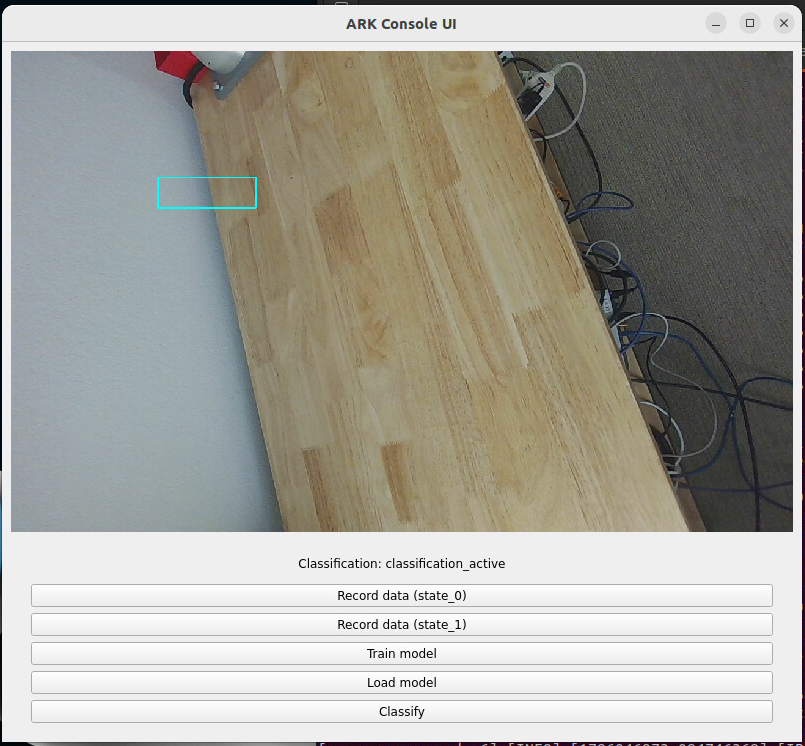
The screenshot above shows classification mode: live camera view with the cyan ROI rectangle, status label Classification: classification_active, and the record / train / load / classify controls.
What you see in the window
Area |
Description |
|---|---|
Image view |
Live camera feed from the remapped image topic. Overlays depend on mode (ROI box, 2D boxes, masks, 3D pose visuals). |
Status label |
Shows the active dataset/model name, e.g. |
Buttons |
Mode-specific actions for recording data, training, loading models, and running inference. |
Modes and launch parameters
The UI is configured by ROS 2 parameters on the console_ui node (set in each example’s launch file):
Parameter |
Default |
Effect |
|---|---|---|
|
|
|
|
|
When |
|
|
Selects FoundationPose-oriented detection path vs RT-DETR-only ( |
Examples:
Classification launch uses
detection_flag: False(classification UI as in the screenshot).Detection launch uses detection controls with
use_fp: False.Pose estimation / dynamic picking / full pipelines typically set
extended_mode: True.
Classification controls
Shown when detection_flag is False (classification examples).
Button |
What it does |
|---|---|
Record data (state_0) |
Starts/stops capturing images for class |
Record data (state_1) |
Same for class |
Train model |
Trains a model from the recorded dataset. Can take several minutes; watch the terminal for progress (e.g. |
Load model |
Loads the active model from the classification models directory. |
Classify |
Runs inference on the current frame using the ROI; results are printed in the terminal (class name and confidence). |
Paths (inside the container)
Dataset:
/workspaces/isaac_ros-dev/data/datasets/classification_activeModel:
/workspaces/isaac_ros-dev/data/models/classification_active
Region of interest (ROI)
The cyan rectangle on the image is the classification ROI. Images are cropped to this region for training and inference.
Configure ROI in
ros/config/config.yaml(roi_classification_x,roi_classification_y,roi_classification_width,roi_classification_height).The UI reads these values via
env_manager_node.When you later run classification from the robot program, the ROI in URScript must match (see the warning on the Classification page).
Typical workflow: move the robot to the inspection pose → start the classification example → record 20–30 images per state while moving the part inside the ROI → Train model → Load model → Classify to verify.
Detection controls
Shown when detection_flag is True.
Button |
What it does |
|---|---|
Take image |
Saves a still image (used when collecting samples for detection training). |
Train model |
Trains the active detection model ( |
Load model |
Loads the detection model checkpoint. |
Detect |
Runs 2D detection (and related pipeline steps depending on launch configuration). |
Detection overlays on the image view can include 2D boxes, SAM masks, and 3D pose markers when those pipeline nodes are running.
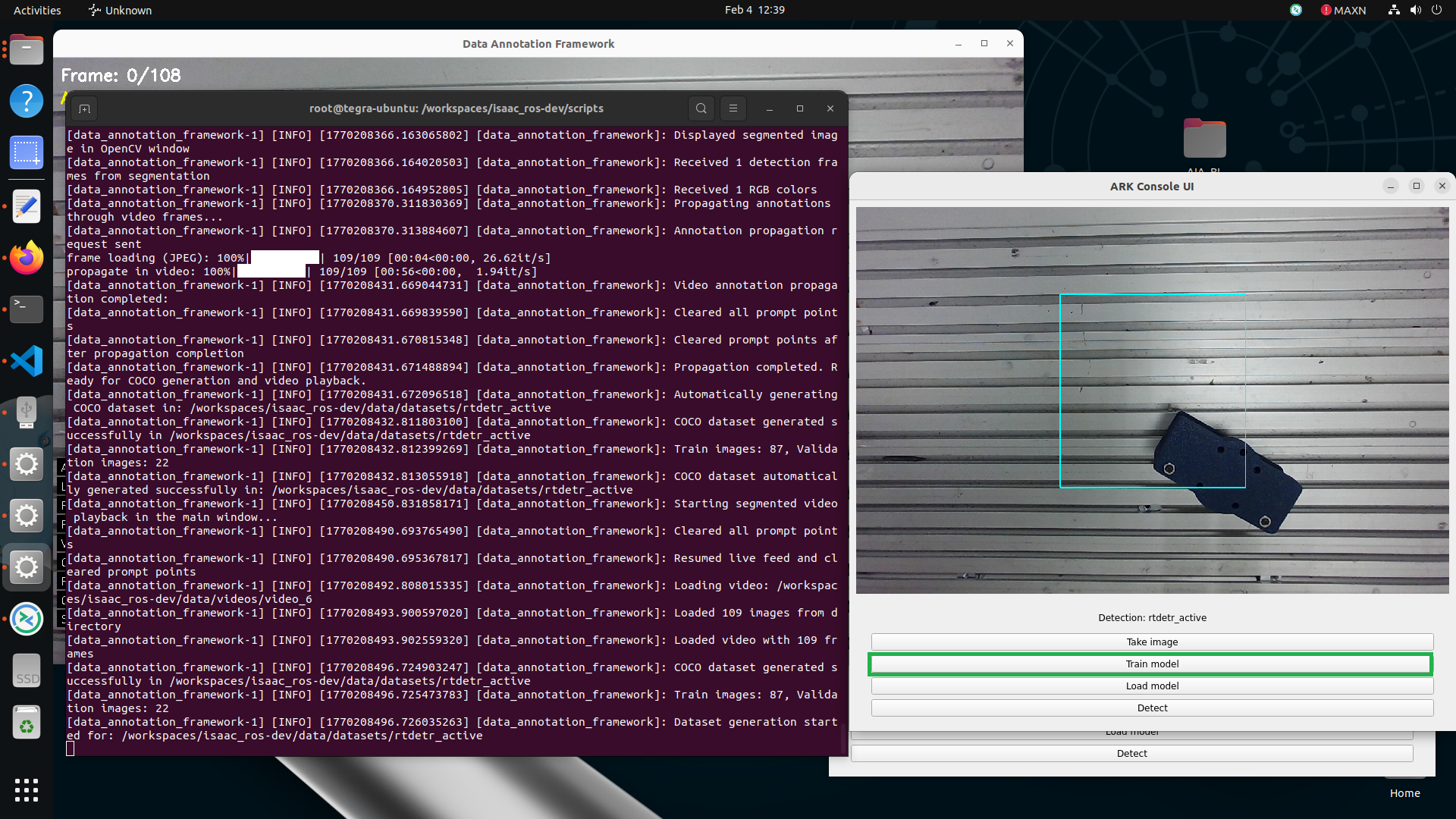
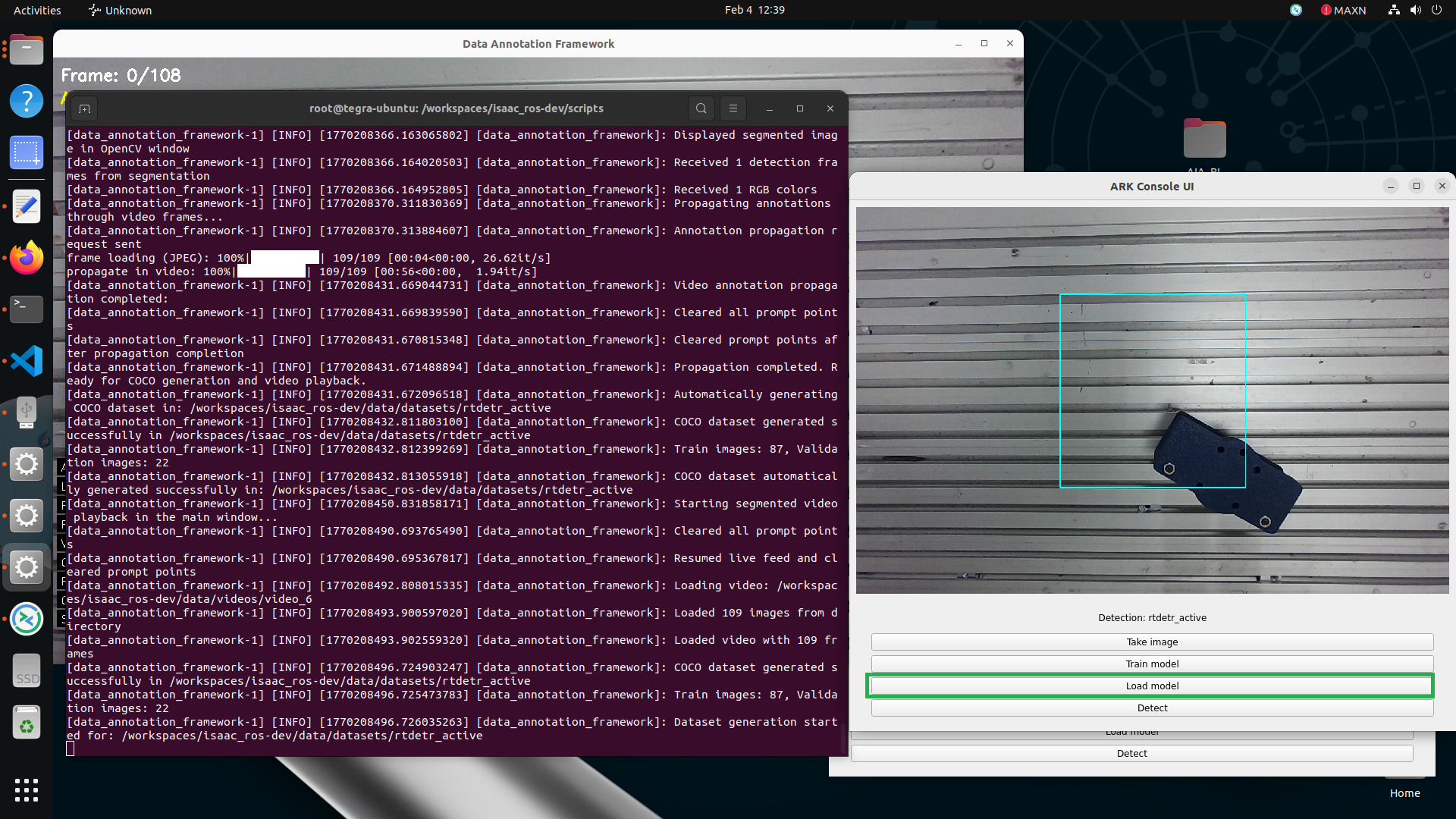
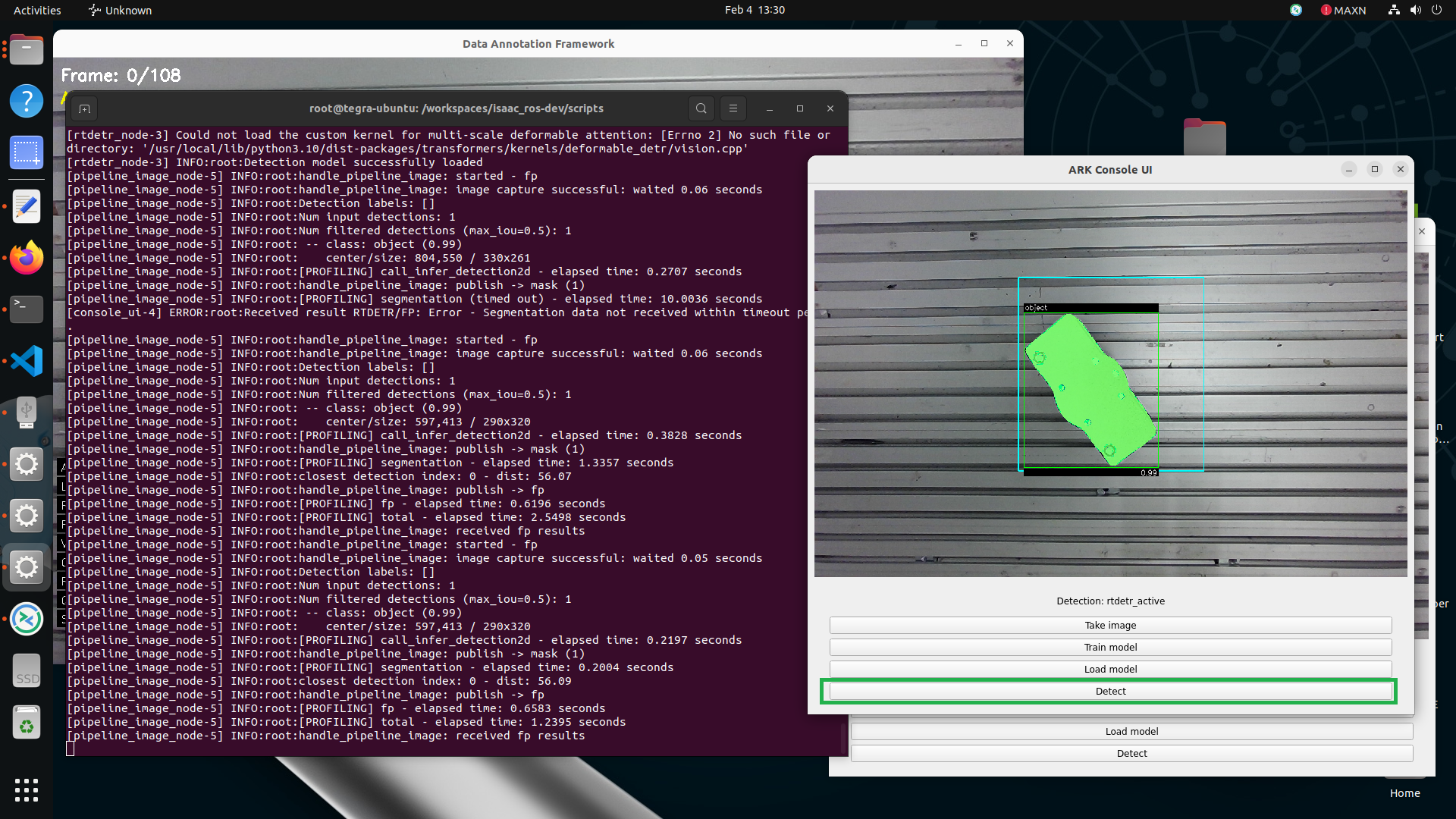
The screenshots below show the detection UI (Detection: rtdetr_active) next to the terminal output, with each step’s button highlighted.
Train model — generates the COCO dataset from the annotated recording and starts training. The terminal reports dataset generation and train/validation image counts.
Load model — loads the trained detection checkpoint from the active model directory. Wait for the terminal to confirm the model loaded before running inference.
Detect — runs inference on the current frame. Detected objects are drawn on the image view (2D box, segmentation mask, and class/confidence label), and the terminal logs detections and per-stage timing.
Extended / world-model controls
When extended_mode is True and world-model updater services are available, additional buttons appear, for example:
Trigger detection — start a pose-detection update cycle
Retrieve pose — fetch computed part poses
Reset world model — clear / reset tracked parts
Snapshot — capture a world-model snapshot
Report — send perception feedback
These are used with FoundationPose / world-model pipelines (pose estimation, dynamic picking, etc.), not with the simple two-state classification UI.
How to open it
Enter the SDK container as described in the SDK article:
cd ~/aia_sdk/ros
./scripts/run_sdk_setup.sh
Run an example script that launches the Console UI, for example:
./scripts/run_example_classification.sh./scripts/run_example_detection.sh
The ARK Console UI window opens on the compute module desktop.
Troubleshooting
Black / empty image view
Usually the camera feed is not reaching console_ui. Check:
# Verify the camera is publishing (adjust namespace/topic to your setup)
ros2 topic echo /<camera>/color/image_raw --once

# Inspect what console_ui subscribes to
ros2 node info /<namespace>/console_ui
Also confirm ros_domain_id and robot serial in ros/config/config.yaml match the robot. If the camera was plugged in after the container started, restart the camera node or the example pipeline.
Classification looks wrong after training
Collect more varied images inside the ROI (pose, lighting).
Confirm the ROI in
config.yamlmatches what you see in the UI and what the robot program uses.Follow the guidance on the Classification page.