Pose Estimation
Warning
The AI Accelerator requires ROS 2 Humble, so PolyScope X 10.12.1 is the latest compatible release. PolyScope X 10.13 and later use ROS 2 Jazzy and are not currently supported.
Six-degree-of-freedom (6DOF) pose estimation finds where a part is in 3D (position and orientation) relative to the robot base so PolyScope can pick it. This demo uses NVIDIA FoundationPose with a trained 2D detector and a textured mesh.
How it works
2D detect the part (RT-DETR, trained from COCO)
Segment the part (SAM, prompted by the detection box)
Estimate 6DOF pose by matching RGB-D + mask to a textured mesh (FoundationPose)
Return poses via URScript (
ark_infer_detectionwithcontext="fp")
        flowchart TB
    cam["<b>Camera</b><br/>RGB + depth + camera_info"]
    rtdetr["<b>RT-DETR</b><br/>2D detection"]
    sam["<b>SAM</b><br/>segmentation"]
    fp["<b>FoundationPose</b><br/>6DOF pose"]
    node["<b>pipeline_image_node</b><br/>orchestrates the stages"]
    ur["<b>PolyScope X</b><br/>move_frame + pick with offset"]

    ckpt[/"checkpoint from<br/>data/models/rtdetr_active"/]
    mesh[/"textured mesh<br/>OBJ + JPG or PNG"/]
    trt[/"TRT engines from<br/>isaac_ros_assets"/]

    cam --> rtdetr
    rtdetr -- "2D bounding boxes" --> sam
    sam -- "RGB + depth + mask" --> fp
    fp -- "Detection3D pose" --> node
    node -- "poses via ark_infer_detection" --> ur

    ckpt -.-> rtdetr
    mesh -.-> fp
    trt -.-> fp

    classDef stage fill:#FFFFFF,stroke:#002B39,stroke-width:1.5px,color:#002B39
    classDef asset fill:#F7F8F7,stroke:#8FA3AB,stroke-width:1px,color:#33484F
    classDef robot fill:#D7DDDF,stroke:#002B39,stroke-width:1.5px,color:#002B39
    class cam,rtdetr,sam,fp,node stage
    class ckpt,mesh,trt asset
    class ur robot
COCO is only for training the 2D detector. FoundationPose does not read COCO; it matches live RGB-D + mask to your textured mesh.
What you need
SDK installed and running
Detector trained with Auto Annotation → checkpoint under
data/models/rtdetr_active/Textured OBJ (+ JPG/PNG): texture, Y-up, real-world dimensions, centered
Example program:
~/aia_sdk/polyscope/programs/aia_example_pose_estimation.urpxGripper open/close nodes filled in for your gripper URCap
Steps
Step 1 — Enter the SDK container
cd ~/aia_sdk/ros
./scripts/run_sdk_setup.sh
Step 2 — Train the detector
Follow Auto Annotation, then train/load with the Console UI.
data/datasets/rtdetr_active/train/coco_train.json
data/datasets/rtdetr_active/validation/coco_validation.json
data/models/rtdetr_active/checkpoint-<step>/
Step 3 — Prepare a textured mesh
Important
When using an OBJ for pose estimation:
Texture required — matching JPG/PNG; set both
fp_mesh_file_pathandfp_texture_path.Y-up — mesh +Y up (parallel to robot base +Z when the part sits normally).
Dimensions match the real part — scale in metres; shape close to the physical object.
Centered origin — run
center_mesh.pybelow.
Scan or export a textured mesh (for example with AR Code), place it under ros/data/meshes/..., then center it:
# inside the SDK container
python helper_scripts/center_mesh.py /path/to/part.obj
Host path: ~/aia_sdk/ros/data/meshes/... · Container: /workspaces/isaac_ros-dev/data/meshes/...
Warning
The example launch constrains mesh orientation for tabletop parts (assumes Y-up). If your part sits outside that range, pose estimation can fail. Adjust or comment out fixed_axis_angles under fp_node in ros/launch/aia_example_pose_estimation.launch.py.
Step 4 — Point the launch file at your mesh
Edit fp_mesh_file_path and fp_texture_path in ros/launch/aia_example_pose_estimation.launch.py, or pass them on the command line:
ros2 launch launch/aia_example_pose_estimation.launch.py \
  fp_mesh_file_path:=/workspaces/isaac_ros-dev/data/meshes/my_part/my_part.obj \
  fp_texture_path:=/workspaces/isaac_ros-dev/data/meshes/my_part/my_part.jpg
Step 5 — Launch pose estimation
./scripts/run_example_pose_estimation.sh
This starts RT-DETR, SAM, FoundationPose, Console UI, and related nodes.
Step 6 — Configure the PolyScope program
Load
aia_example_pose_estimation.urpxfrom~/aia_sdk/polyscope/programs/.In Before Start, load your checkpoint:
ark_init()
sleep(1)
global errorcode = ark_load_detection_model(model="rtdetr_active/checkpoint-750")
Replace checkpoint-750 with the folder that exists under data/models/rtdetr_active/.
Detection uses context="fp":
ark_set_detection_params(min_confidence=0.6, labels=[], context="fp")
global result = ark_infer_detection()
This example teaches pick with a waypoint relative to the part frame. For a frames-only variant, see Dynamic Picking.
Step 7 — Teach waypoints and run
Waypoints: Capture, Part_Pick (relative to part), Place_Point, plus an approach offset.
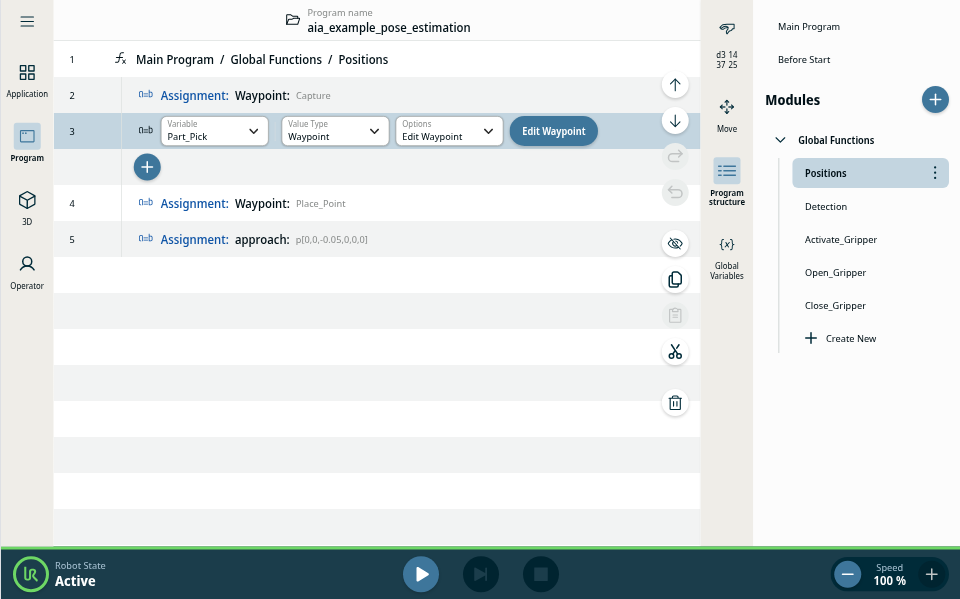
Capture (fixed imaging), Part_Pick (relative to part), Place_Point (fixed).
Teach Capture.
Set speed to 10%, enable operator config, play, wait for pose. Confirm
posesin globals; optionally check RViz.Stop and teach Part_Pick without nudging the part. Set relative frame back to
partbefore saving.
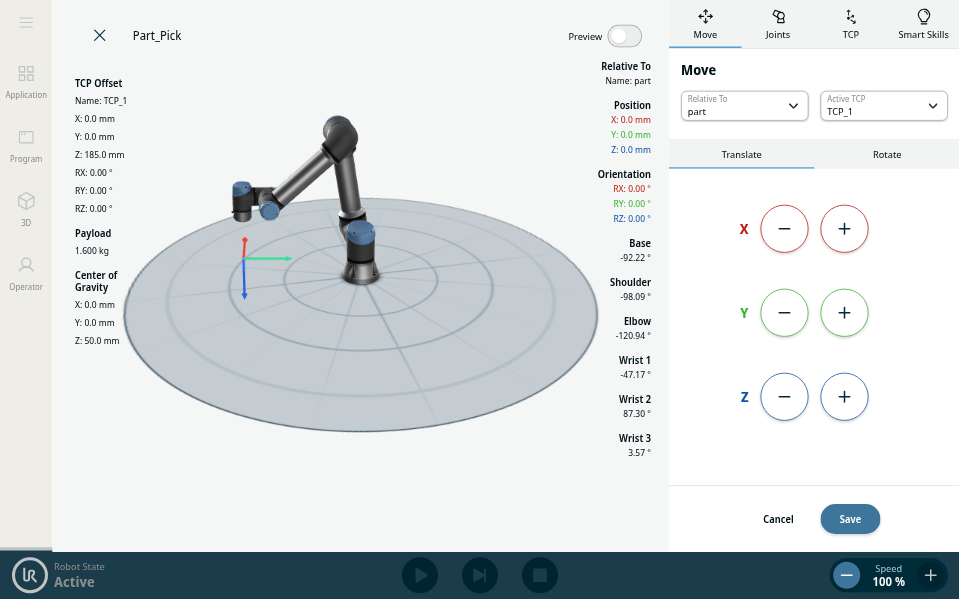
Teach Part_Pick with relative frame part.
Run again to pick and retract, then teach Place_Point with the part in hand.
Run the full loop at low speed first.
Common issues
Wrong or missing
rtdetr_activecheckpoint in Before StartMesh not centered, wrong scale, missing texture, or not Y-up
fixed_axis_anglesdoes not match how the part can sitCamera too close for depth (under ~20 cm on Orbbec 335Lg)
Weak detector → bad mask → bad FoundationPose pose
robot_serial/ros_domain_idmismatch → blank Console UI (Console UI blank window)Another
isaac_pkgs_appstill running (docker stop isaac_pkgs_app)