Orbbec Viewer
Warning
The AI Accelerator requires ROS 2 Humble, so PolyScope X 10.12.1 is the latest compatible release. PolyScope X 10.13 and later use ROS 2 Jazzy and are not currently supported.
Orbbec Viewer is Orbbec’s desktop tool for the Gemini camera. Use it on the compute box host to confirm RGB and depth, check firmware, and adjust exposure before you start the ROS 2 camera driver or SDK examples.
The AI Accelerator kit camera is the Orbbec Gemini 335Lg (Gemini 330 family). Viewer is not required for the SDK, but it is the fastest way to tell hardware/cabling issues apart from ROS or URCap problems.
Official packages: OrbbecSDK_v2 releases. Linux ARM64 is tested on NVIDIA Jetson AGX Orin.
Before you start
Keyboard, mouse, and a display on the compute box (Viewer is a GUI).
Confirm architecture is ARM64:
uname -m # must print aarch64
Stop anything that already owns the camera. The SDK and Camera Creator containers will keep Viewer from seeing the device:
docker ps
docker stop isaac_pkgs_app
Also stop the camera-node container if it is listed (name includes camera-node or similar).
Important
Always install the ARM64 (linux_arm64 / _arm64.deb) build. x86 packages (amd64, linux_x86_64) will not run on the Jetson.
Install from the Viewer tarball
Filenames change with each release. The steps below use v2.9.3 as an example. On a newer release, pick the matching OrbbecViewer_*_linux_arm64.tar.gz from the same releases page.
1. Download
If the compute box can reach GitHub:
cd ~
wget https://github.com/orbbec/OrbbecSDK_v2/releases/download/v2.9.3/OrbbecViewer_v2.9.3_202607160623_b7e38ef_linux_arm64.tar.gz
If DNS fails (Could not resolve host: github.com), download the same file on another PC and copy it to the compute box:
scp OrbbecViewer_v2.9.3_*_linux_arm64.tar.gz lab@<compute-box-ip>:~/
When prompted, the password is easybot. The default compute-box IP on 2.x is 192.168.0.100 (user lab — see SDK).
2. Extract
cd ~
mkdir -p ~/OrbbecViewer
tar -xzf ~/OrbbecViewer_v2.9.3_*_linux_arm64.tar.gz -C ~/OrbbecViewer
You should get a folder similar to:
~/OrbbecViewer/OrbbecViewer_v2.9.3_202607160623_b7e38ef_linux_arm64/OrbbecViewer
Confirm it is an ARM64 binary:
file ~/OrbbecViewer/OrbbecViewer_v2.9.3_*/OrbbecViewer
Expect ELF 64-bit LSB ... ARM aarch64.
3. Install USB udev rules
Without these rules, Viewer may need sudo or fail to open the camera. The Viewer tarball does not always include the rules file.
Download this zip (same files used on the kit: 99-obsensor-libusb.rules and install_udev_rules.sh):
Copy it to the compute box if you downloaded it on another PC:
scp orbbec_udev_rules.zip lab@192.168.0.100:~/
On the compute box:
cd ~
unzip -o orbbec_udev_rules.zip
cd ~/orbbec_udev_rules
sudo ./install_udev_rules.sh
That copies the rules to /etc/udev/rules.d/99-obsensor-libusb.rules and reloads udev. The lab user is normally already in the video group.
Unplug and replug USB (or cycle GMSL power) after installing rules.
You can also take the same two files from the matching Orbbec SDK ARM64 .deb (OrbbecSDK_v2.x.x_arm64.deb) under opt/OrbbecSDK_v2.x.x/shared/.
4. Launch
cd ~/OrbbecViewer/OrbbecViewer_v2.9.3_*/
./OrbbecViewer
Optional wrapper:
cat > ~/OrbbecViewer/run_orbbec_viewer.sh << 'EOF'
#!/bin/bash
cd "$HOME"/OrbbecViewer/OrbbecViewer_v2.9.3_202607160623_b7e38ef_linux_arm64
exec ./OrbbecViewer "$@"
EOF
chmod +x ~/OrbbecViewer/run_orbbec_viewer.sh
Adjust the inner directory name if your version folder differs. Then run ~/OrbbecViewer/run_orbbec_viewer.sh from a terminal on the desktop session.
When the Gemini 335Lg is connected and streaming, Viewer looks like this: the device name and USB/GMSL link appear in the top bar, and Color / Depth / IR / IMU panes show live data.
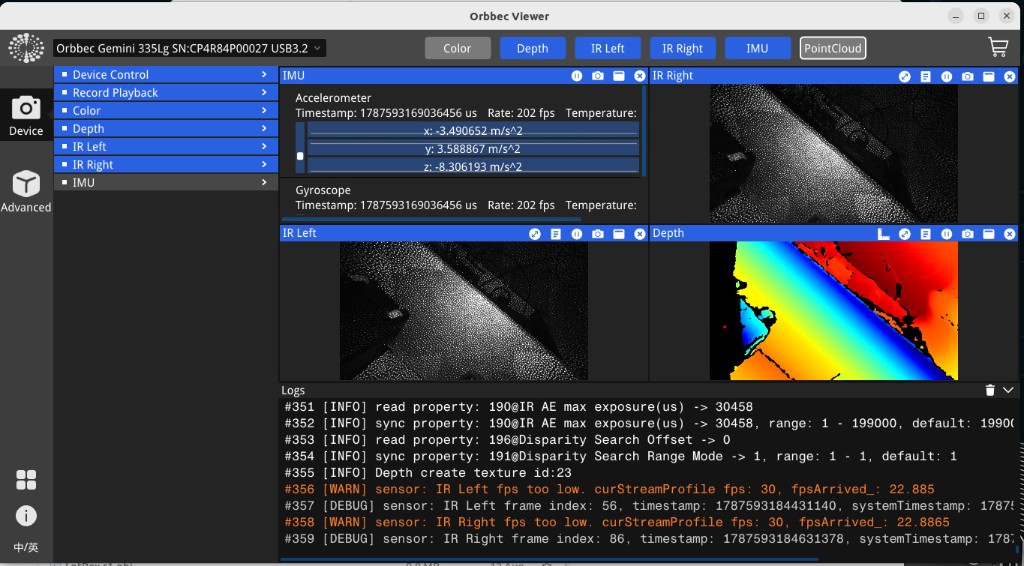
Orbbec Viewer with an Orbbec Gemini 335Lg on USB 3.2. Depth is the false-color pane; IR left/right are grayscale. If the camera is missing from the device dropdown, stop the SDK/camera containers and check cabling — see If the camera does not appear.
Alternative: SDK .deb
The ARM64 Debian package installs libraries and a Viewer binary under /opt/OrbbecSDK_v2.x.x/.
sudo dpkg -i OrbbecSDK_v2.9.3_arm64.deb
sudo apt-get install -f -y
Then start Viewer from /opt/OrbbecSDK_v2.9.3/tools/OrbbecViewer (path version matches the package). Install udev rules from orbbec_udev_rules.zip (or from shared/install_udev_rules.sh inside the .deb).
If the camera does not appear
Check |
What to do |
|---|---|
Another process owns the camera |
|
USB vs GMSL |
Switch must match the cable — see GMSL ( |
Wrong package |
|
Permissions |
Install udev rules; user should be in group |
No display |
Viewer needs a local desktop; SSH alone cannot show the GUI unless you use X11/Wayland forwarding |
After you finish inspecting the camera, close Viewer before starting the SDK or Camera Creator again so ROS can claim the device.